

DNS settings can significantly impact your gaming experience on the PS5. Slow connection speeds, lag, and latency issues can all be improved with the right DNS settings.
In this comprehensive guide, we’ll explore the best DNS servers for PS5, how to change DNS settings, and other essential tips to optimize your gaming experience.
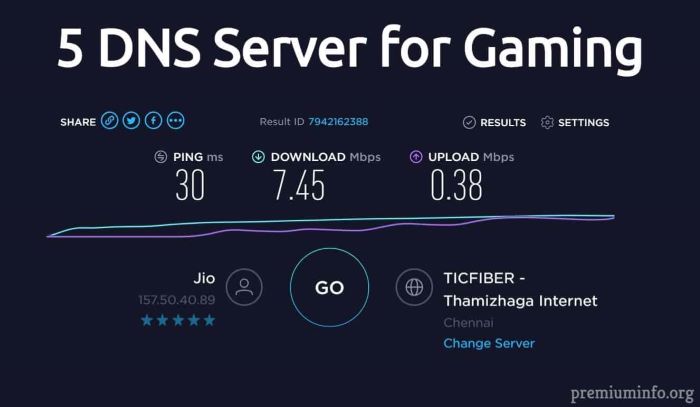
If you’re experiencing slow connection speeds, lag, or latency issues while gaming on your PS5, your DNS settings could be the culprit. DNS (Domain Name System) is responsible for converting website URLs into IP addresses.
By optimizing your DNS settings, you can improve your gaming experience and reduce latency issues. In this article, we’ll explore the best DNS servers for PS5, how to change DNS settings, and other essential tips to boost your gaming speed.
What is DNS?
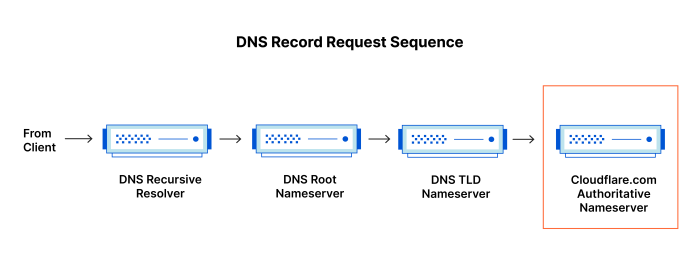
DNS stands for Domain Name System. It is responsible for translating human-readable domain names into IP addresses that computers can understand.
In simpler terms, DNS allows you to use easy-to-remember domain names (like google.com) instead of complex IP addresses (like 172.217.6.142) to access websites and online services.
Why Do DNS Settings Matter for Gaming?
DNS settings can significantly impact your gaming experience on the PS5. Slow connection speeds, lag, and latency issues can all be improved with the right DNS settings. By default, your ISP provides you with DNS servers.
However, these servers may not always be the best choice for gaming. By using a third-party DNS server, you can reduce latency, improve connection speeds, and ultimately enhance your gaming experience.
Best DNS Servers for PS5
Google DNS
Google DNS is one of the most popular and widely used DNS servers. It offers fast and reliable service, and it’s easy to set up on your PS5. To use Google DNS on your PS5, follow these steps:
- Go to Settings on your PS5.
- Select Network.
- Select Set Up Internet Connection.
- Select Custom.
- Select Wi-Fi or LAN depending on your connection type.
- Select Manual Setup.
- Enter the following DNS server addresses:
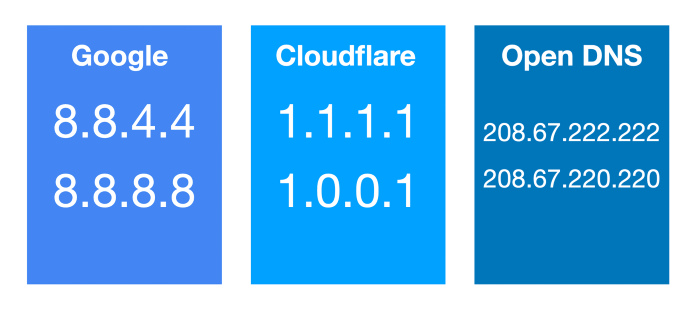
- Primary DNS: 8.8.8.8
- Secondary DNS: 8.8.4.4
- Save your settings.
OpenDNS
OpenDNS is another popular choice for gamers. It offers a range of features, including customizable content filtering and phishing protection. To use OpenDNS on your PS5, follow these steps:
- Go to Settings on your PS5.
- Select Network.
- Select Set Up Internet Connection.
- Select Custom.
- Select Wi-Fi or LAN depending on your connection type.
- Select Manual Setup.
- Enter the following DNS server addresses:
– Primary DNS: 208.67.222.222
– Secondary DNS: 208.67.220.220 - Save your settings.
Cloudflare DNS
Cloudflare DNS is another popular choice for gamers. It offers fast and reliable service, with a focus on privacy and security. To use Cloudflare DNS on your PS5, follow these steps:
- Go to Settings on your PS5.
- Select Network.
- Select Set Up Internet Connection.
- Select Custom.
- Select Wi-Fi or LAN depending on your connection type.
- Select Manual Setup.
- Enter the following DNS server addresses:
-Primary DNS: 1.1.1.1
-Secondary DNS: 1.0.0.1 - Save your settings.
Quad9 DNS
Quad9 DNS is a non-profit organization that offers fast and secure DNS services. It is designed to block malicious websites and protect your privacy. To use Quad9 DNS on your PS5, follow these steps:
- Go to Settings on your PS5.
- Select Network.
- Select Set Up Internet Connection.
- Select Custom.
- Select Wi-Fi or LAN depending on your connection type.
- Select Manual Setup.
- Enter the following DNS server addresses:
-Primary DNS: 9.9.9.9
-Secondary DNS: 149.112.112.112 - Save your settings.

How to Change DNS Settings on PS5
Now that we’ve covered the best DNS servers for PS5, let’s explore how to change DNS settings on your PS5. There are two ways to change DNS settings on PS5: manual setup and automatic setup.

Manual Setup
To manually set up DNS servers on your PS5, follow these steps:
- Go to Settings on your PS5.
- Select Network.
- Select Set Up Internet Connection.
- Select Custom.
- Select Wi-Fi or LAN depending on your connection type.
- Select Manual Setup.
- Enter the primary and secondary DNS server addresses.
- Save your settings.
Automatic Setup
To use the automatic setup for DNS servers on your PS5, follow these steps:
- Go to Settings on your PS5.
- Select Network.
- Select Set Up Internet Connection.
- Select Easy.
- Follow the on-screen instructions.
Other Essential Tips to Optimize Your Gaming Experience on PS5
In addition to changing your DNS settings, there are several other essential tips to optimize your gaming experience on PS5.
Confirm Your Wi-Fi Network Details
Ensure that your PS5 is connected to the correct Wi-Fi network. Double-check the network name and password to avoid connection issues.
Check PSN and Your ISP for Outages
If you’re experiencing connection issues, check PSN and your ISP for outages. This will help you identify if the issue is on your end or with the service provider.
Connect Your PS5 with an Ethernet Cable
Connecting your PS5 with an Ethernet cable can help reduce latency and improve connection speeds. This is especially important for online gaming.
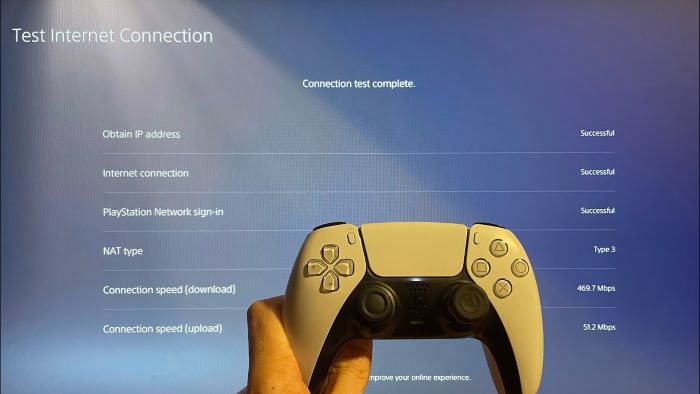
Run the PS5 Network Test
Running the PS5 network test can help you identify any connection issues and suggest ways to improve your network performance.
Conclusion
DNS settings can significantly impact your gaming experience on PS5. By using a fast and reliable DNS server, you can reduce latency, improve connection speeds, and enhance your online gaming performance.
In this article, we have covered some of the best DNS servers for PS5, including Google DNS, Cloudflare DNS, Quad9 DNS, and OpenDNS. We have also explained how to change DNS settings on PS5 and provided essential tips to optimize your gaming experience.
By following these tips, you can ensure a seamless and enjoyable gaming experience on your PS5.
FAQs
What are the benefits of DNS servers?
DNS servers can significantly impact your internet speed, latency, and overall network performance. By using a fast and reliable DNS server, you can improve your browsing and gaming experience.
Why is a fast DNS server important for PS5?
A fast DNS server can reduce latency and improve connection speeds on your PS5, resulting in better online gaming performance.
Is it safe to change DNS on PS5?
Yes, it is safe to change DNS on PS5. However, it’s essential to use a trusted DNS server to avoid potential security issues.
What is the best DNS server for PS5?
The best DNS server for PS5 depends on your location and internet service provider. However, some of the popular choices include Google DNS, Cloudflare DNS, Quad9 DNS, and OpenDNS.
How to change DNS settings on PS5?
You can change DNS settings on PS5 by going to Settings > Network > Set Up Internet Connection > Custom > Wi-Fi/LAN > Manual Setup > Enter DNS server addresses.
