

Are you wondering if Freesync works with Nvidia GPUs? Look no further! This comprehensive guide will answer all your questions and provide step-by-step instructions to enable Freesync on your Nvidia-powered gaming rig.

Freesync and Nvidia G-Sync
Freesync and G-Sync are adaptive synchronization technologies designed to eliminate screen tearing and improve the gaming experience. While Freesync is an open standard developed by AMD, G-Sync is a proprietary solution from Nvidia. The primary difference between the two lies in their implementation and certification process.
Compatibility between Freesync and Nvidia GPUs
The good news is that Freesync can work with Nvidia GPUs, thanks to Nvidia’s G-Sync Compatible initiative. Although not all Freesync monitors are officially certified by Nvidia, many users have reported successful results even with uncertified monitors. It’s worth noting that compatibility is only guaranteed over DisplayPort connections, not HDMI. However, HDMI 2.1 supports the Variable Refresh Rate (VRR) standard, which can provide a similar experience to Freesync.
How to Enable Freesync with Nvidia Graphics Cards
Follow these step-by-step instructions to enable Freesync with your Nvidia GPU:
Step 1: Connect the Monitor
Make sure your Freesync monitor is connected to your Nvidia graphics card using a DisplayPort cable. HDMI connections may not be compatible with Freesync for Nvidia GPUs.

Step 2: Update Windows
Ensure your Windows operating system is up-to-date, as this can affect compatibility with the latest drivers and technologies.

Step 3: Update Nvidia Drivers
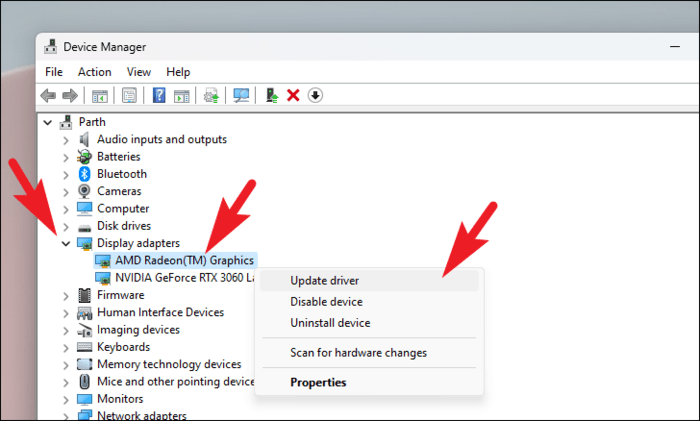
Download and install the latest Nvidia graphics drivers from their official website to ensure compatibility with Freesync.
Step 4: Enable Freesync on the Monitor
Access your monitor’s on-screen display (OSD) menu and enable the Freesync or Adaptive Sync option.

Step 5: Turn on G-Sync
Open the Nvidia Control Panel, navigate to the “Set up G-SYNC” section, enable the “Enable G-SYNC, G-SYNC Compatible” checkbox, and select the appropriate display.

Freesync vs G-Sync: Pros and Cons
While both Freesync and G-Sync provide a smoother gaming experience by eliminating screen tearing, there are some differences between the two technologies:
- Freesync is an open standard, while G-Sync is proprietary.
- Freesync monitors are generally more affordable than G-Sync monitors.
- G-Sync certification ensures a consistent experience, while Freesync standards can vary between monitors.
How to Enable Freesync on Your Nvidia GPU
To make Freesync work with your Nvidia GPU, you’ll need to follow these simple steps.
Step 1: Connect the monitor
Ensure that you connect your Freesync monitor to the Nvidia GPU using a DisplayPort cable. If your monitor only has HDMI, you can use an HDMI to DisplayPort adapter.

Step 2: Update Windows
Before proceeding, make sure your Windows operating system is up-to-date. Go to Settings > Update & Security > Windows Update and click on “Check for updates.”
Step 3: Update Nvidia drivers
Update your Nvidia GPU drivers to the latest version from the Nvidia website or use the Nvidia GeForce Experience app.
Step 4: Enable Freesync
Go to your monitor’s on-screen display (OSD) settings and enable Freesync or Adaptive Sync.

Step 5: Turn on G-Sync
Open the Nvidia Control Panel by right-clicking on your desktop and selecting “NVIDIA Control Panel.” Navigate to “Set up G-SYNC” under “Display” and enable the “Enable G-SYNC, G-SYNC Compatible” checkbox. Make sure your Freesync monitor is selected in the dropdown menu.
Testing Freesync on Your Nvidia GPU
Once you’ve enabled Freesync on your Nvidia GPU, you can test it using various tools and in-game settings.
- Nvidia Pendulum Demo: Download the Nvidia Pendulum Demo from the Nvidia website to test G-Sync functionality.
- TestUFO: Visit testufo.com to check for screen tearing and stuttering.
- In-game settings: Enable V-Sync in your game settings to prevent screen tearing.

Troubleshooting Freesync Issues
If you encounter issues with Freesync on your Nvidia GPU, consider the following troubleshooting steps:
- Check your cable connections and ensure you are using a DisplayPort cable or a compatible HDMI to DisplayPort adapter.
- Update your monitor’s firmware.
- Reset your monitor’s settings to factory defaults and re-enable Freesync.
- Check for compatibility issues between your monitor and GPU.
- Look for solutions specific to your monitor model or GPU on forums and online communities.
Conclusion
Using Freesync with an Nvidia GPU can provide you with a smoother gaming experience by eliminating screen tearing and stuttering. By following the steps outlined in this guide, you can enable Freesync on your Nvidia GPU and enjoy the benefits of adaptive sync technology. Always remember to keep your drivers up-to-date, use the appropriate cables, and test your setup to ensure optimal performance.
Whether you’re a casual gamer or a competitive player, leveraging the capabilities of Freesync with your Nvidia GPU can greatly enhance your gaming experience. Don’t miss out on the advantages of adaptive sync technology – follow this guide and enjoy smoother, tear-free gameplay today.
FAQs
Does Freesync work with all Nvidia GPUs?
Freesync works with Nvidia GTX 10-series, RTX 20-series, and RTX 30-series GPUs. Make sure your GPU supports G-Sync Compatible mode.
Is there any performance loss when using Freesync with an Nvidia GPU?
There might be a slight performance loss, but it is generally negligible and outweighed by the benefits of a smoother gaming experience.
Can I use Freesync with my Nvidia GPU over HDMI?
Freesync works best with DisplayPort on Nvidia GPUs. Some monitors may support Freesync over HDMI, but it is not guaranteed to work with Nvidia GPUs.
Do I need to enable V-Sync in games when using Freesync with an Nvidia GPU?
It is recommended to enable V-Sync in games to prevent screen tearing. Freesync will still provide a smoother gaming experience and eliminate stuttering caused by varying frame rates.
What is the difference between G-Sync and Freesync?
G-Sync is a proprietary adaptive sync technology developed by Nvidia, while Freesync is an open standard developed by AMD. Both technologies aim to reduce screen tearing and stuttering in games by synchronizing the monitor’s refresh rate with the GPU’s frame rate.
