


Roblox – A Quick Introduction
Roblox is a popular online gaming platform where users can create and play games designed by other players.
With millions of players and creators worldwide, it’s no surprise that errors can occur from time to time. One such error that users may encounter is Error Code 267.
In this comprehensive guide, we’ll cover various methods to help you resolve this issue and get back to happy gaming!
1. Check Your Internet Connection
An unstable or slow internet connection can cause Error Code 267. To fix this issue, follow these steps:
- Check if other devices on your network are experiencing connectivity issues.
- Restart your modem and router.
- Connect to a different Wi-Fi network or use a wired connection.

2. Reset Your Browser Settings
Resetting your browser settings to default can help resolve Error Code 267. Follow these steps for Google Chrome:
- Open Chrome and click the three-dot menu in the top-right corner.
- Click “Settings.”
- Scroll down to “Advanced” and click it.
- Under “Reset and clean up,” click “Restore settings to their original defaults.”
- Click “Reset settings.”

3. Reinstall Your Browser
If resetting your browser settings doesn’t work, try reinstalling your browser. For Google Chrome, follow these steps:
- Uninstall Chrome by going to “Control Panel” > “Programs and Features” > “Google Chrome” > “Uninstall.”
- Download the latest version of Chrome from the official website.
- Install Chrome by following the on-screen instructions.

4. Remove Unwanted 3rd Party Extensions
Some browser extensions can cause Error Code 267. To remove unwanted extensions in Chrome, follow these steps:
- Open Chrome and click the three-dot menu in the top-right corner.
- Click “More tools” > “Extensions.”
- Locate any unwanted extensions and click the “Remove” button.

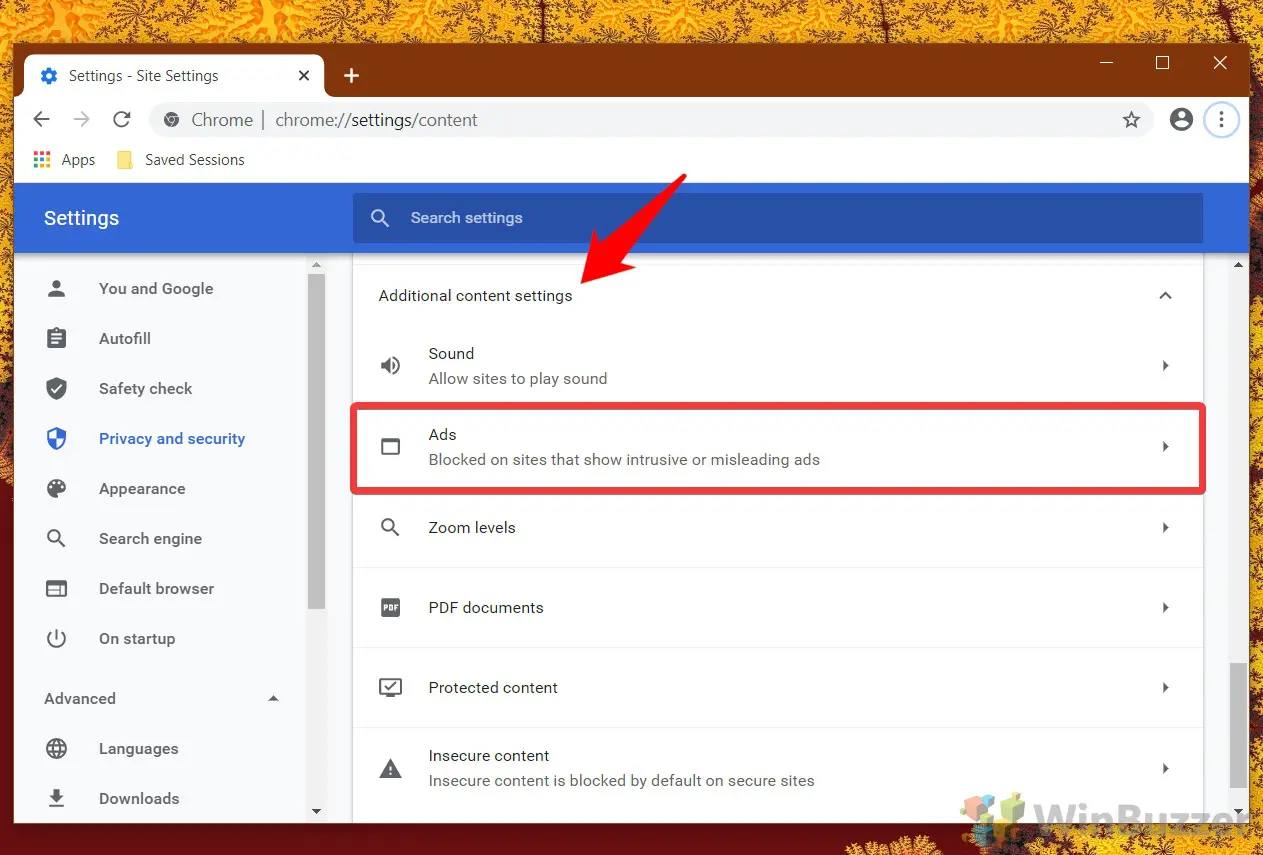
5. Disable Ad-blockers
Ad-blockers can sometimes interfere with Roblox and cause Error Code 267. To disable ad-blockers in Chrome, follow these steps:
- Open Chrome and click the three-dot menu in the top-right corner.
- Click “More tools” > “Extensions.”
- Locate your ad-blocker and toggle the switch to disable it
- Restart your browser and try playing Roblox again.
6. Use a VPN
Error Code 267 can sometimes be related to an IP ban. Using a VPN can help bypass this issue. Follow these steps:
- Choose a reliable VPN service.
- Download and install the VPN client on your device.
- Connect to a VPN server.
- Launch Roblox and try playing again.

7. Reinstall Roblox
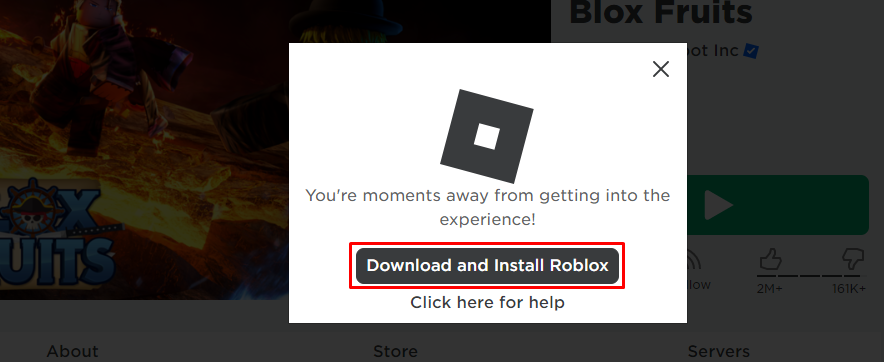
Reinstalling Roblox can help resolve Error Code 267. Follow these steps:
- Uninstall Roblox by going to “Control Panel” > “Programs and Features” > “Roblox” > “Uninstall.”
- Go to the official Roblox website and download the latest version.
- Install Roblox by following the on-screen instructions.
8. Check Windows Firewall
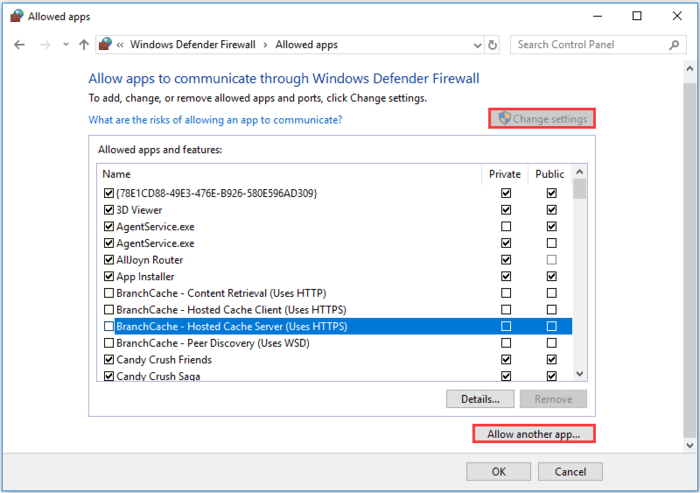
Windows Firewall can sometimes block Roblox, causing Error Code 267. To check and allow Roblox through Windows Firewall, follow these steps:
- Press “Windows key + R” and type “firewall.cpl” in the Run dialog box.
- Click “Allow an app or feature through Windows Defender Firewall.”
- Click “Change settings” and locate Roblox in the list.
- Check both the “Private” and “Public” boxes for Roblox.
- Click “OK” to save changes.
9. Update Network Drivers
Outdated network drivers can cause Error Code 267. To update your network drivers, follow these steps:
- Press “Windows key + X” and click “Device Manager.”
- Expand “Network adapters.”
- Right-click your network adapter and select “Update driver.”
- Choose “Search automatically for updated driver software.”
- Follow the on-screen instructions to update your network drivers.

10. Restart Your System
Sometimes, simply restarting your system can resolve Error Code 267. Save any open work and restart your computer.

11. Reddit Solutions
According to a Reddit post, deleting all Roblox files in %AppData% and reinstalling the game has helped some users fix Error Code 267. To do this, follow these steps:
- Press “Windows key + R” and type “%AppData%” in the Run dialog box.
- Locate the Roblox folder and delete it.
- Follow the steps in Solution 7 to reinstall Roblox.

Conclusion
By trying the solutions mentioned above, you should be able to fix Error Code 267 on Roblox and get back to happy gaming. If you’re still experiencing issues, consider reaching out to Roblox Support for further assistance.
