

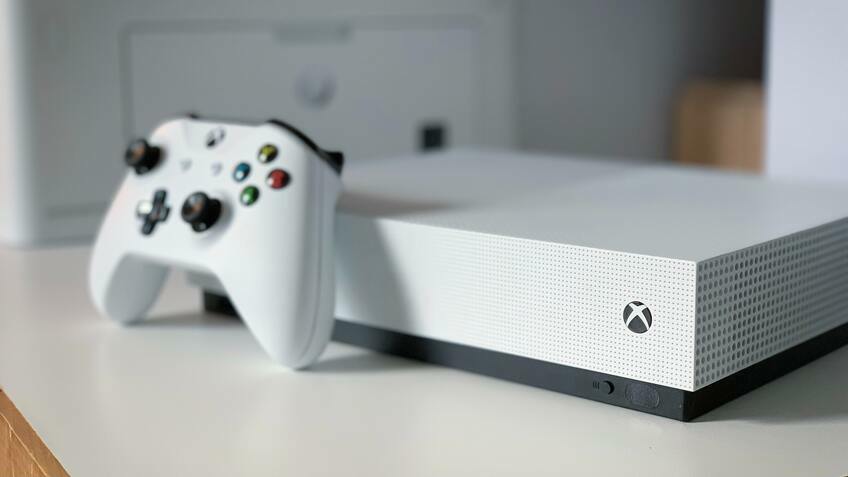
1. Change Power Modes and Power Cycle the Console
First, change the power mode settings on your Xbox One.

Next, power cycle your console by following these steps:
Press and hold the Xbox button on the console for 10 seconds until it turns off.
Unplug the power cord from the back of the console and wait for 30 seconds.
Plug the power cord back in and press the Xbox button on the console to turn it on.

2. Reposition Your Console
Ensure your Xbox One is placed horizontally on a flat, stable surface. Avoid placing the console vertically, as this may cause disc reading issues.

3. Reset the Xbox One Operating System
Resetting the Xbox One operating system can help resolve disc reading issues. Follow these steps to reset your console:
Press the Xbox button on your controller to open the guide.
Go to ‘Profile & system’ > ‘Settings’ > ‘System’ > ‘Console info.’
Select ‘Reset console.’
Choose ‘Reset and keep my games & apps.’

4. Check the Game Disc for Damage
Examine the disc for visible damage, such as scratches, smudges, or dust. Clean the disc gently with a soft, lint-free cloth, wiping from the center outward.

5. Test Another Disc
Try using another game disc to determine if the issue is specific to the disc or the console itself.

6. Clean the Components
Dust and debris buildup can cause disc reading problems. Clean your Xbox One’s ventilation and disc drive using a can of compressed air.

7. Clear Persistent Storage
Clearing the persistent storage can help fix disc reading issues:
Press the Xbox button on your controller to open the guide.
Go to ‘Profile & system’ > ‘Settings’ > ‘Devices & connections’ > ‘Blu-ray.’
Select ‘Persistent storage’ and then ‘Clear persistent storage.’

8. Update and Restart Your Xbox One
Check for system updates and restart your console to fix potential disc reading issues:
Press the Xbox button on your controller to open the guide.
Go to ‘Profile & system’ > ‘Settings’ > ‘System’ > ‘Updates & downloads’.
Select ‘Check for updates’ and install any available updates.
Restart your console.

9. Move Your Xbox One
Ensure your Xbox One is placed in a well-ventilated area with enough space around it. Avoid placing it near heat sources or in an enclosed space.

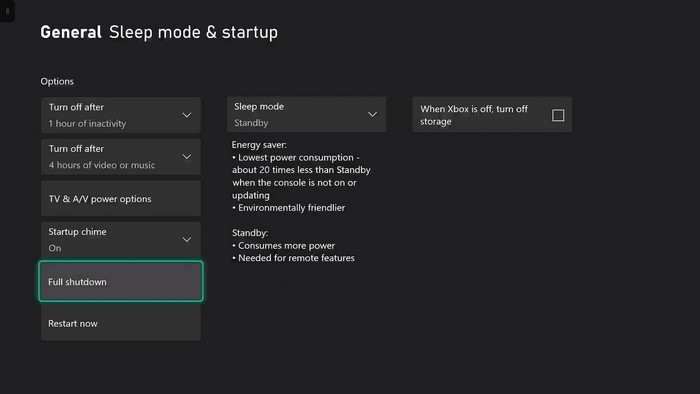
10. Perform a Full Shutdown
Perform a full shutdown to help resolve disc reading issues:
Press the Xbox button on your controller to open the guide.
Go to ‘Profile & system’ > ‘Settings’ > ‘General’ > ‘Power mode & startup.’
Select ‘Full shutdown.’
11. Check for Foreign Objects
Ensure no foreign objects are inside the disc drive. Use a flashlight to inspect the drive and carefully remove any debris using a pair of tweezers.

12. Replace Laser Reader or BD-ROM Drive (For Experts)
If none of the above solutions work, you might need to replace the laser reader or BD-ROM drive. This process is complex and should only be attempted by experts or professionals.

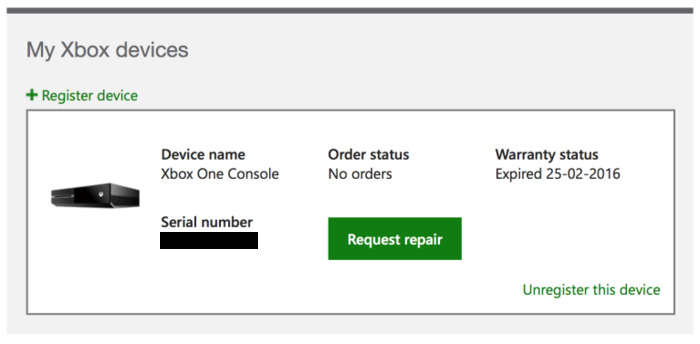
13. Repair Services and Extended Warranties
Consider using professional repair services or an extended warranty to protect your Xbox One from future issues.
Reddit Solutions
1. Hold the Disc and Delay Insertion
Some Reddit users suggest holding the disc for half a second before letting it go completely. This allows the disc to enter the drive, forcefully resolving the issue.

2. Hold the Power Button for 5 Seconds
Press and hold the power button on your console for 5 seconds, then turn it on again. This may help fix disc reading problems.

3. Tilt the System Back
Tilting the front of the Xbox One back slightly may help the disc slide in more quickly, fixing disc reading issues.

