

Determine your UPnP status and NAT type
Before troubleshooting, you need to determine your UPnP status and NAT type. This information helps you understand the cause of the problem and apply the appropriate solution.
Press the Xbox button on your controller to open the guide.
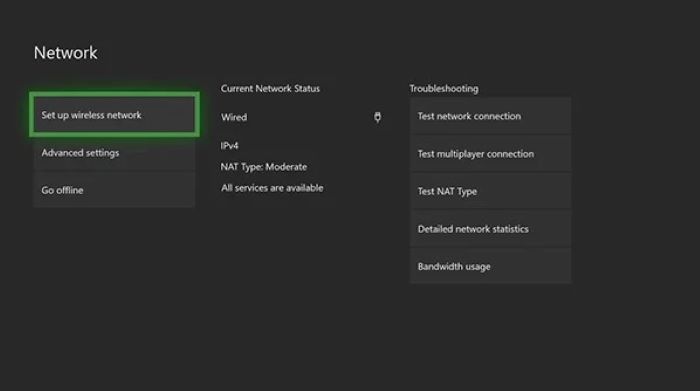
Go to “Profile & system” > “Settings” > “General” > “Network settings.”
Check the “Current Network Status” section for UPnP and NAT type.

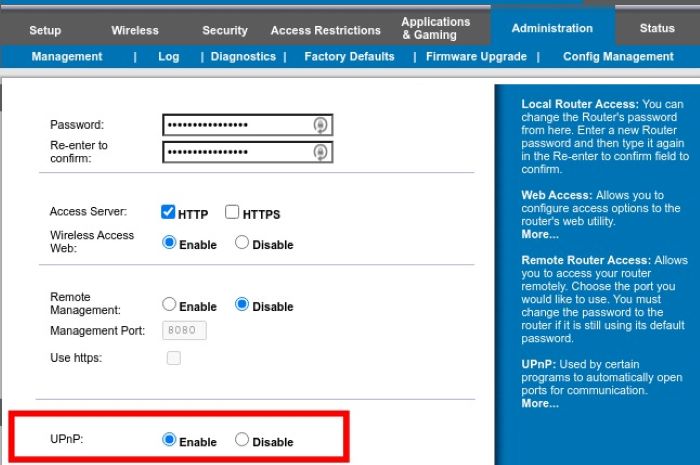
Enable UPnP in your router settings
If your UPnP status is not successful, enabling it in your router settings might resolve the issue.
Find your router’s IP address by searching “default gateway” in Windows “Command Prompt” or “Terminal” on macOS.
Enter the IP address into your browser’s address bar to access your router’s admin panel.
Log in using your router’s default credentials (usually “admin” for both username and password).
Locate the UPnP settings and enable UPnP.
Save the changes and restart your router.

Set a static IP address on Xbox and forward the correct ports
If enabling UPnP doesn’t resolve the issue, try setting a static IP address for your Xbox and forwarding the correct ports.
Assign a static IP address to your Xbox:
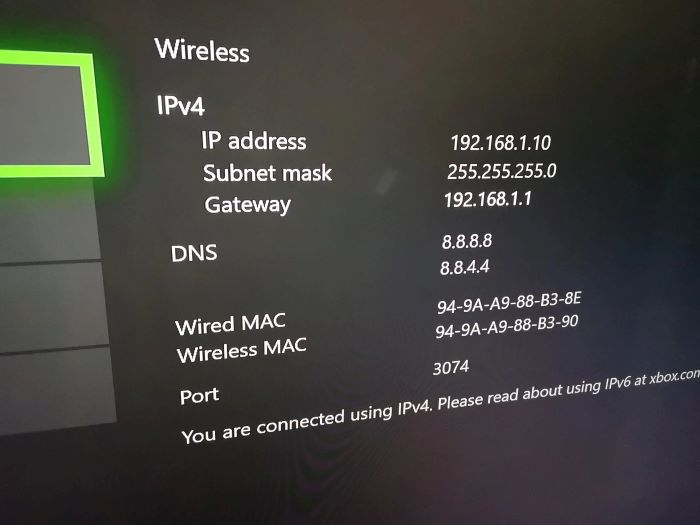
Go to “Settings” > “General” > “Network settings.”
Select “Advanced settings” > “IP settings.”
Choose “Manual” and enter a unique static IP address.
Forward the required ports on your router:
Access your router’s admin panel using the IP address.
Find the port forwarding section and add the following ports for Xbox Live: TCP: 53, 80, 3074; UDP: 53, 88, 500, 3074, 3544, 4500.
Save the changes and restart your router.

Restart or reset your router
Sometimes, a simple restart can resolve network issues. If that doesn’t work, you can try resetting your router to its factory settings.
Unplug your router for at least 30 seconds, then plug it back in to restart it.
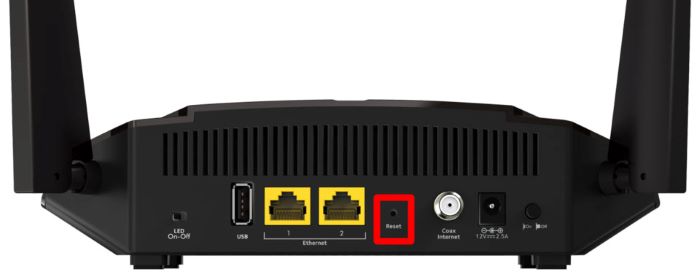
If the issue persists, press the reset button on your router using a paper clip or pen for 10-15 seconds. This will restore the factory settings.
Change NAT type configuration
If you still experience the “UPnP not successful” error, you may need to change your NAT type configuration.
Access your router’s admin panel using its IP address.
Locate the NAT settings and change the NAT type to “Open” or “Moderate.”
Save the changes and restart your router.
Clear the alternate MAC address
Clearing the alternate MAC address on your Xbox can also help resolve the UPnP issue.
Press the Xbox button on your controller to open the guide.
Go to “Profile & system” > “Settings” > “General” > “Network settings.”
Select “Advanced settings” > “Alternate MAC address.”
Choose “Clear” and confirm the action.

Clear the persistent storage cache
Clearing the persistent storage cache on your Xbox can help with various network-related issues, including the UPnP error.
Press the Xbox button on your controller to open the guide.
Go to “Profile & system” > “Settings” > “Devices & connections” > “Blu-ray.”
Select “Persistent storage” and choose “Clear persistent storage.”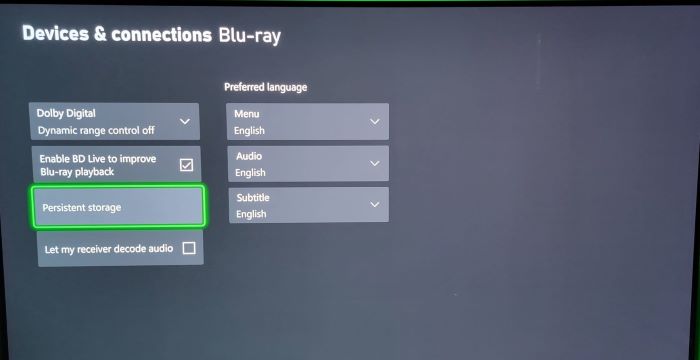
Test your NAT type
After trying the solutions above, test your NAT type to check if the UPnP issue is resolved.
Press the Xbox button on your controller to open the guide.
Go to “Profile & system” > “Settings” > “General” > “Network settings.”
Select “Test NAT type” and wait for the results.
Contact your ISP
If none of the solutions above work, there might be something upstream that’s preventing an open NAT. Contact your Internet Service Provider (ISP) to discuss the issue and seek their assistance.

