

1. Sign in with the Owner’s Account
If you encounter error code 0x803F8001 when launching an Xbox game or app, it might be because the owner of the game or app is not signed in. Make sure the person who purchased the game or app is signed in to their Xbox network account.

2. Log into Microsoft Store with the Purchasing Email
If you bought a game like Minecraft from the official website, you should log into the Microsoft Store with the same email address you used for the purchase. This will help to sync your account and resolve the error.

3. Run a PowerShell Script to Re-register the Store
Running a PowerShell script to re-register the Microsoft Store can help resolve the 0x803F8001 error. Here’s how:
- Right-click on the Start button and select “Windows PowerShell (Admin).”
- Copy and paste the following command: Get-AppXPackage *WindowsStore* -AllUsers | Foreach {Add-AppxPackage -DisableDevelopmentMode -Register “$($_.InstallLocation)\AppXManifest.xml”}

4. Restart Your Computer
A simple restart can sometimes fix the error. Restart your computer and try launching the game or app again.

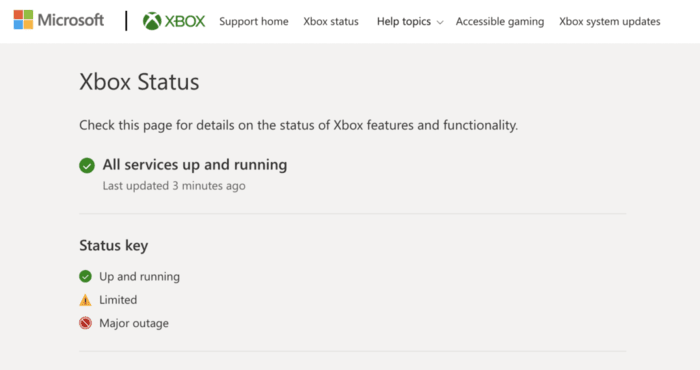
5. Check Xbox Live Service Status
Check the Xbox Live service status to see if there are any issues with the service. If there are any problems, wait until the service is back online and try again.
6. Clear Windows Store Cache
Clearing the Windows Store cache can help resolve the error. To do this:
- Press “Win + R” to open the Run dialog.
- Type “wsreset.exe” and press Enter.

7. Sign Out and Sign In to Microsoft Accounts
Signing out and signing back into your Microsoft accounts can help refresh the account information and fix the error.

8. Verify Region and Language Settings
Ensure that your region and language settings are correct, as incorrect settings can cause the error.

9. Designate Xbox One Console as Your Home Xbox
If the game owner designates a specific Xbox One console as their home Xbox, anyone using that Xbox can use the installed games and apps, even if the owner is not signed in.
10. Update Windows
Make sure your system is up to date with the latest Windows updates, as outdated software can cause errors.

11. Uninstall and Reinstall the Application
If the error persists, try uninstalling the problematic app or game and reinstalling it from the Microsoft Store.

12. Reset the Console or Perform a Full Power Cycle
Performing a full power cycle or resetting your Xbox console can help resolve the error.
To perform a full power cycle:
- Press and hold the Xbox button on the front of the console for 10 seconds.
- Wait for the console to turn off completely.
- Unplug the power cable from the back of the console.
- Wait for at least 10 seconds.
- Plug the power cable back in and turn on the console.

By following these steps, you should be able to resolve the error code 0x803F8001 on your Xbox or Windows device. Enjoy a seamless gaming experience!
