

Quick Links / Table of Contents:
Check HDMI Cable and Ports
Boot PS5 in Safe Mode
Disable HDR Settings on TV and PS5
Update TV Firmware and Use HDMI 2.1 Cable
Power Cycle PS5 and TV
Change TV HDMI Signal Format
Clean PS5 HDMI Port
Verify TV Video Input Source
Change PS5 Video Output Resolution
Reddit Solutions
Conclusion
Check HDMI Cable and Ports
The first step in resolving PS5 HDMI issues is to inspect the HDMI cable and ports on both the PS5 and TV. Check for any visible damage, such as bent pins, dirt, or debris. A damaged cable or port can cause connectivity issues.
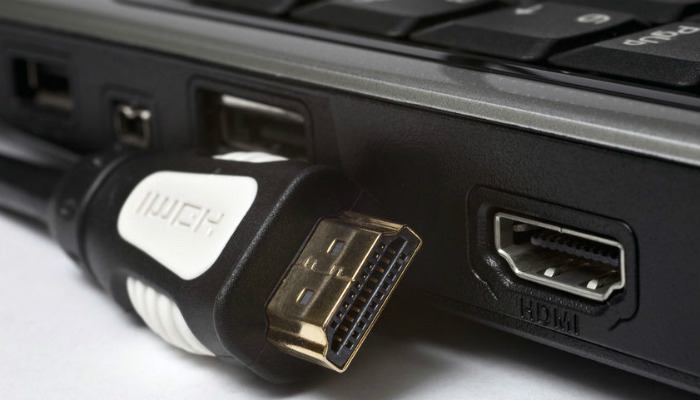
To test the HDMI cable, use another cable to connect your PS5 to your TV. If the issue persists, try connecting your PS5 to a different HDMI port on your TV. If the problem is resolved, the issue may have been a faulty HDMI cable or port.

Boot PS5 in Safe Mode
Booting your PS5 in Safe Mode can help troubleshoot HDMI issues. Follow these steps:
Turn off your PS5 by pressing the power button and waiting for the power indicator light to turn off.
Press and hold the power button until you hear two beeps (about seven seconds).
Connect the controller to the console with a USB cable and press the PS button.
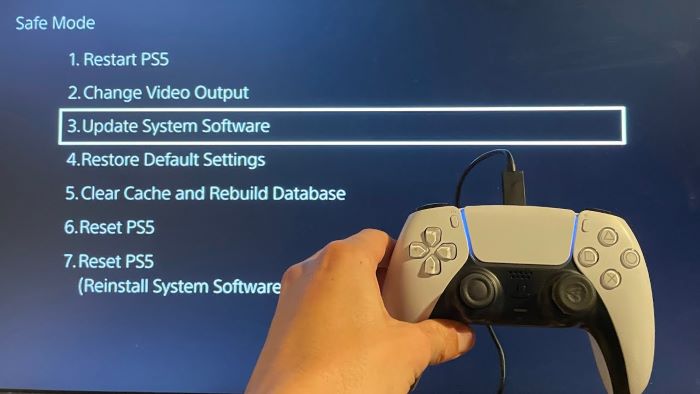
If your PS5 displays the Safe Mode menu, try selecting “Change Resolution” to see if your display issues are resolved.
Disable HDR Settings on TV and PS5
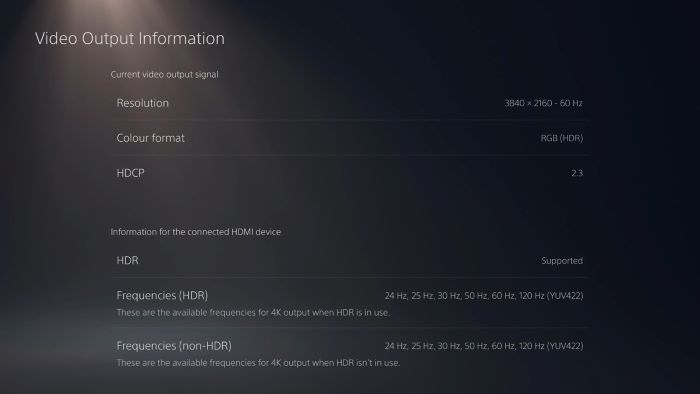
Disabling HDR (High Dynamic Range) settings on your TV and PS5 may resolve HDMI issues. To disable HDR on your TV, refer to the TV’s user manual or manufacturer’s instructions.
To disable HDR on your PS5, follow these steps:
Go to “Settings” on the PS5 home screen.
Select “Screen and Video.”
Choose “Video Output.”
Disable “HDR” by selecting “Off.”
Update TV Firmware and Use HDMI 2.1 Cable
Updating your TV’s firmware can help resolve HDMI issues. Check your TV manufacturer’s website for firmware updates and follow their instructions for installation.

Additionally, using an HDMI 2.1 cable can improve compatibility between your TV and PS5. Purchase an HDMI 2.1 cable and connect it to your PS5 and TV.

Power Cycle PS5 and TV
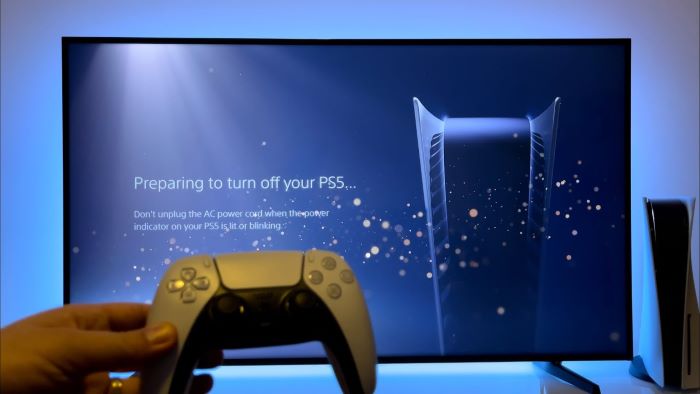
Power cycling your PS5 and TV can help resolve HDMI issues. To power cycle your devices, follow these steps:
Turn off your PS5 and TV.
Unplug the power cords from both devices.
Wait for at least 30 seconds.
Plug the power cords back into both devices.
Turn on your PS5 and TV.
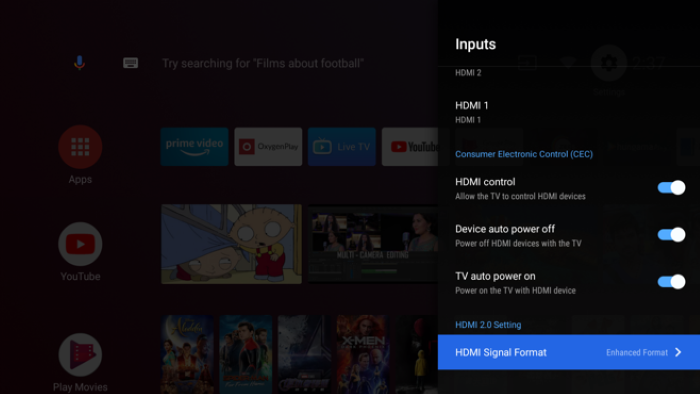
Change TV HDMI Signal Format
Changing your TV’s HDMI signal format can help resolve HDMI issues. Consult your TV’s user manual or manufacturer’s instructions to learn how to change the HDMI signal format.
Clean PS5 HDMI Port
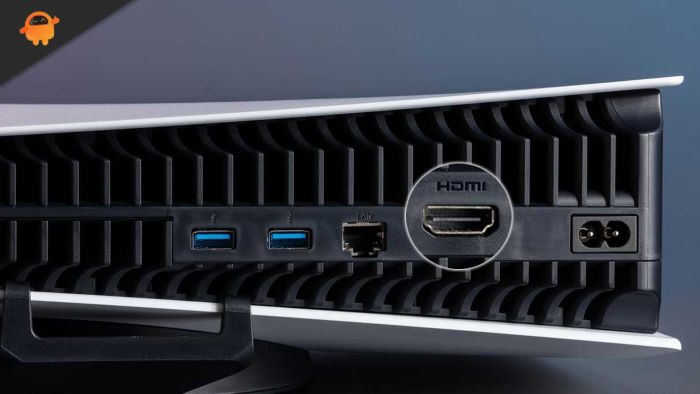
Cleaning the PS5 HDMI port can help remove dirt, dust, and debris that may cause HDMI issues. To clean the HDMI port, follow these steps:
Power off your PS5 and unplug the HDMI cable.
Use a can of compressed air to gently blow out any dust or debris from the HDMI port.
Inspect the port for any remaining debris and remove it using a soft brush or cotton swab.
Verify TV Video Input Source
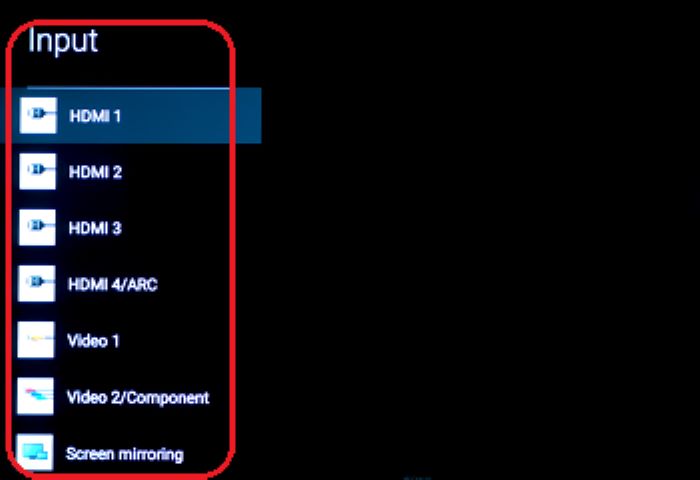
Ensure that your TV is set to the correct video input source. Use your TV remote to cycle through the available input sources until you find the one connected to your PS5.
Change PS5 Video Output Resolution
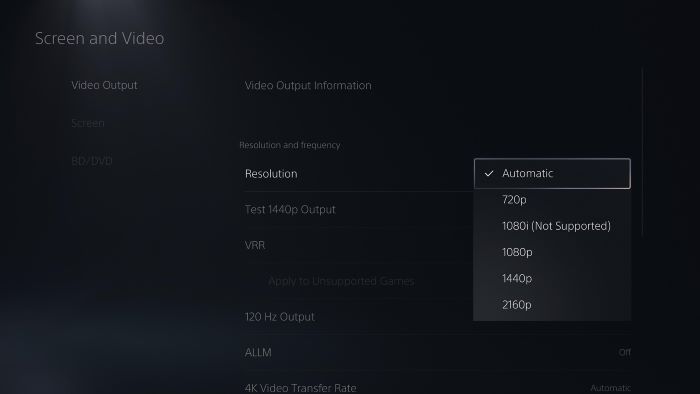
Changing the PS5 video output resolution can help resolve HDMI issues. To change the resolution, follow these steps:
Boot your PS5 in Safe Mode (refer to the Boot PS5 in Safe Mode section for instructions).
Select “Change Resolution” from the Safe Mode menu.
Choose a lower resolution setting and test if it resolves the issue.
Reddit Solutions
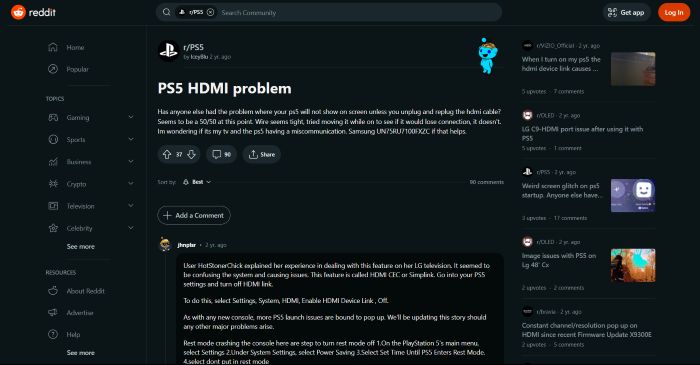
Reddit users have shared various solutions for PS5 HDMI issues. These include cleaning the HDMI port, checking for bent pins on the HDMI cable, and updating the PS5 firmware. If none of the previous solutions work, consider contacting Sony for repair or replacement.
Conclusion
In this guide, we’ve covered various troubleshooting methods and solutions for PS5 HDMI issues. Remember to approach each solution step by step and use the provided Google Image search terms to find visual aids if necessary. We hope that one of these solutions resolves your PS5 HDMI issue and gets you back to gaming. If all else fails, contact Sony for further assistance. Good luck!
