

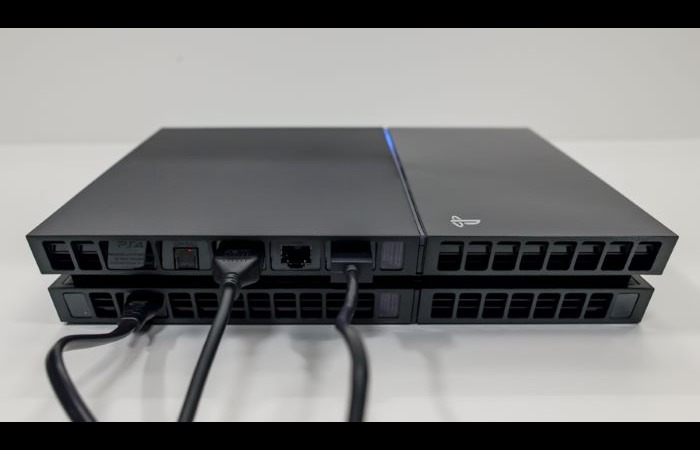
Understanding the PS4 White Light
The PS4 white light, also known as the “White Light of Death” or WLOD, is a common issue that PlayStation 4 users may encounter.
This guide will provide you with comprehensive information on the possible causes of the PS4 white light, troubleshooting steps, and solutions to fix the problem.
Additionally, we will discuss how to recover lost data from your PS4 and preventive measures to avoid the white light issue in the future.
Common Causes of PS4 White Light
The PS4 white light can be caused by various factors, including:
Faulty HDMI port or cable
Dust, rust, or dirt in the HDMI port
Hardware malfunctions or defects
Outdated software firmware
Low battery or charging issues
Syncing issues with the console
Understanding these causes will help you identify and fix the issue more effectively.
PS4 White Light Troubleshooting and Solutions
Here are some common troubleshooting steps and solutions for fixing the PS4 white light issue:
Reboot the console: Turn off your PS4 completely and unplug it from the power source. Wait for at least 30 seconds, then plug it back in and turn it on. This may resolve any temporary issues causing the white light.
Check HDMI and TV connection: Inspect the HDMI port and cable for any damage or loose connections. If necessary, test another cable or HDMI port on your TV.
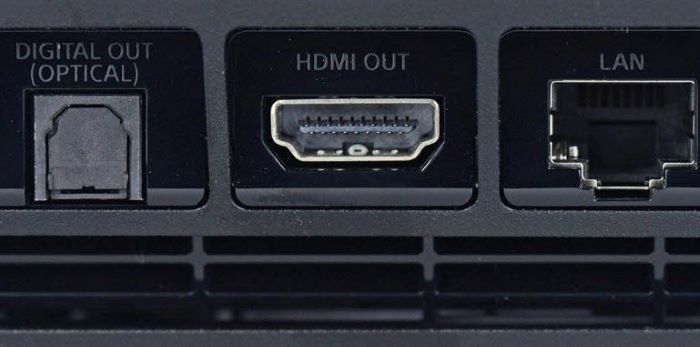
Clean the HDMI port: Dust, rust, or dirt in the HDMI port can cause the white light issue. Use a soft brush or compressed air to gently clean the port.
Enter Safe Mode: Starting your PS4 in Safe Mode can help you troubleshoot and fix various issues, including the white light. To do this, turn off your PS4, press and hold the power button until you hear two beeps, then release the button. Connect your controller using a USB cable and press the PS button.
Update System Software in Safe Mode: While in Safe Mode, select “Update System Software” and follow the on-screen instructions to update your PS4.
Reset PS4 Controller: Press the small reset button on the back of the controller using a thin object, like a paperclip. This may resolve syncing issues that could be causing the white light.
Check the Battery and Charging Status: Ensure your controller is fully charged, as a low battery can cause the white light issue.
Recovering Lost Data from PS4
If you’ve lost data from your PS4 due to the white light issue or any other reason, you can use data recovery software to retrieve your lost files. Some popular options include:
Stellar Data Recovery for PlayStation
Tenorshare 4DDiG Data Recovery
EaseUS Data Recovery Wizard
These tools can help you recover lost game saves, video files, and other important data from your PS4.
Preventive Measures for PS4 White Light Issues
To minimize the chances of encountering the PS4 white light issue, follow these preventive measures:
Keep your PS4 clean and well ventilated: Regularly clean your PS4 console, including the HDMI port, to prevent dust and dirt buildup. Ensure that your PS4 has enough space around it for proper ventilation.
Update your PS4 firmware and software: Regularly update your PS4’s firmware and software to ensure you’re running the latest versions. This can help prevent compatibility and performance issues.
Use high-quality HDMI cables: Invest in good quality HDMI cables to ensure a stable connection between your PS4 and TV.
Handle your PS4 controller with care: Avoid dropping or mishandling your PS4 controller, as this can cause damage and lead to the white light issue.
Monitor your PS4’s performance: Pay attention to any unusual behavior or performance issues with your PS4. Addressing these issues early can help prevent the white light problem.
When to Contact PlayStation Support
If you’ve tried all the troubleshooting steps and solutions mentioned in this guide but are still experiencing the PS4 white light issue, it’s time to contact PlayStation Support for further assistance.
They can help diagnose and repair any hardware or software issues that may be causing the problem.
You can reach PlayStation Support through their official website or by phone. Keep your PS4’s serial number and model information handy, as this may be required during the support process.
Conclusion
The PS4 white light issue can be frustrating, but with the right knowledge and troubleshooting steps, you can identify and fix the problem. This comprehensive guide has provided you with the necessary information on the causes, solutions, and preventive measures for the PS4 white light.
If you’re still experiencing issues after trying these solutions, don’t hesitate to contact PlayStation Support for further assistance.
Remember to regularly maintain your PS4, update its software and firmware, and handle your controller with care to minimize the chances of encountering the white light issue in the future.
