


Many PlayStation 4 (PS4) users have faced the frustrating issue of their console getting stuck in Safe Mode. This comprehensive guide will help you troubleshoot and resolve this problem, even if you’re a tech noob.
We’ve gathered a list of solutions that have worked for Reddit users and other PS4 owners on the web. We’ll walk you through each step, along with specific Google Image search keywords to help you find visual aids for each solution.
1. Restart the PS4
Step 1: Force Shutdown
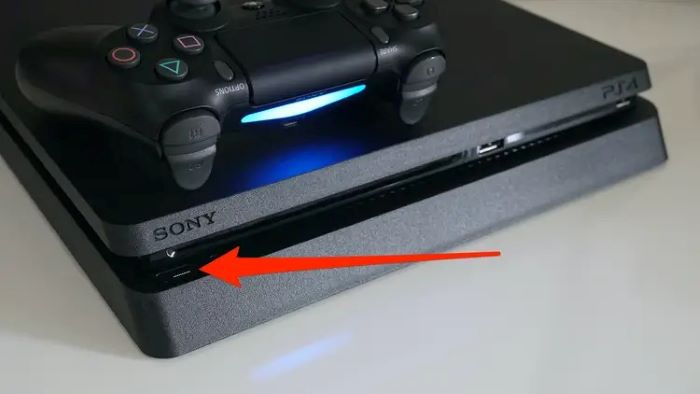
If your PS4 is stuck in Safe Mode, the first thing you should try is to force shut down the console. To do this, press and hold the power button on the console for about 7 seconds until you hear two beeps. This will turn off the console.

Step 2: Restart the Console
Once the console is off, wait for a few seconds, and then press the power button again to turn it on. This should help your PS4 exit Safe Mode.
2. Check and Reconnect Cables
Step 1: Check HDMI and Power Cables
Check the HDMI cable connecting your PS4 to the TV, and the power cable connecting the PS4 to the power outlet. Ensure that these cables are not damaged, loose, or disconnected.


Step 2: Reconnect the Cables
Disconnect the cables and reconnect them securely, ensuring a proper connection. This can resolve any issues caused by loose or disconnected cables.

3. Update the System Software
Step 1: Download the Update
If your PS4 is still stuck in Safe Mode, try updating the system software. You can download the update directly from the PlayStation website onto a USB stick.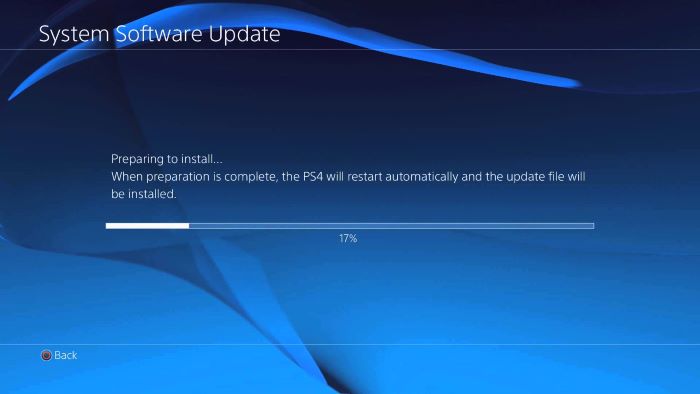
Step 2: Install the Update
Insert the USB stick with the downloaded update into your PS4. Navigate to the “Update System Software” option in the Safe Mode menu and follow the on-screen instructions to install the update.

4. Rebuild the Database
Step 1: Enter Safe Mode
If your PS4 is not already in Safe Mode, turn off the console and enter Safe Mode by holding the power button until you hear two beeps.
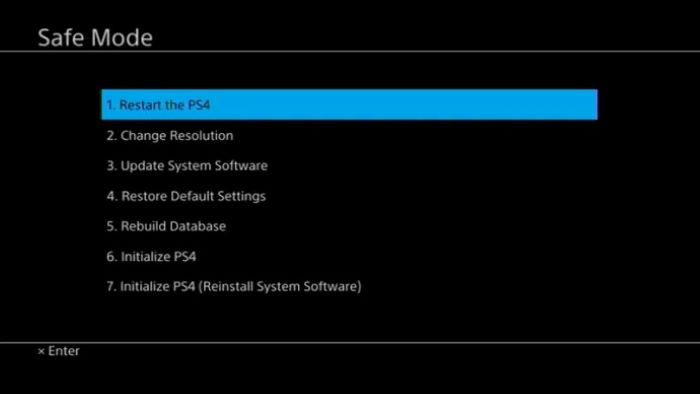
Step 2: Rebuild the Database
In Safe Mode, select the “Rebuild Database” option. This process may take some time but can fix many issues, including the Safe Mode loop.

5. Initialize the PS4
Step 1: Back Up Your Data (Optional)
Before initializing your PS4, consider backing up your data to avoid losing any important information, such as game saves and screenshots.

Step 2: Initialize the PS4
In Safe Mode, select the “Initialize PS4” option. This will restore your console to its factory settings, potentially resolving the Safe Mode issue.

6. Restore Default Settings
Step 1: Enter Safe Mode
If your PS4 is not already in Safe Mode, turn off the console and enter Safe Mode by holding the power button until you hear two beeps.
Step 2: Restore Default Settings
In Safe Mode, select the “Restore Default Settings” option. This will reset your PS4’s settings without affecting your personal data.
7. Seek Professional Help
If none of the above solutions work, consider seeking help from a professional. Contact PlayStation customer service or take your console to a certified repair center for assistance.

We hope this guide has helped you resolve the PS4 Safe Mode loop issue. If you still have questions or concerns, feel free to leave a comment or reach out to the PlayStation support team for further assistance.
