


Introduction to Error E-8210604A
Error E-8210604A is a common issue that PlayStation 4 (PS4) users face when trying to make a purchase on the PlayStation Store. This error is related to the credit/debit card information registered to your account, and it can be frustrating to deal with.
In this comprehensive guide, we will hold your hand and walk you through the possible solutions to this error, making it easy for even the most technologically challenged users to resolve the issue.
Potential Causes of Error E-8210604A
Before diving into the solutions, it’s essential to understand the possible causes of this error:
- Incorrect or outdated credit/debit card information
- A temporary issue with the PlayStation Store
- Network connection problems
- Email account associated with your PlayStation account may have issues
Solutions that Worked for Reddit Users
The following solutions have helped Reddit users resolve Error E-8210604A:
- Check or edit your credit/debit card information from Settings > Account Management > Account Information > Wallet
- Re-register your credit/debit card
- Try using another credit/debit card
- Keep in mind that this may be a temporary issue, and trying again later might resolve the problem.
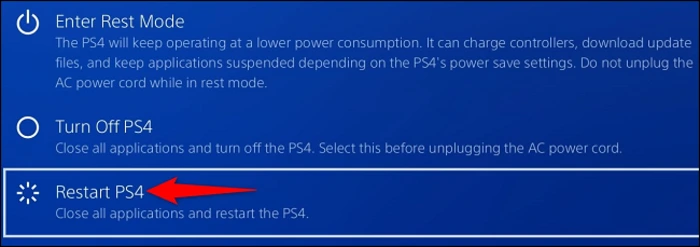
Restart Your PlayStation 4
A simple solution to try first is restarting your PS4. To do this:
- Press and hold the PS button on your controller
- Select “Power” in the menu that appears
- Choose “Restart PS4”
Check Your Network Connection
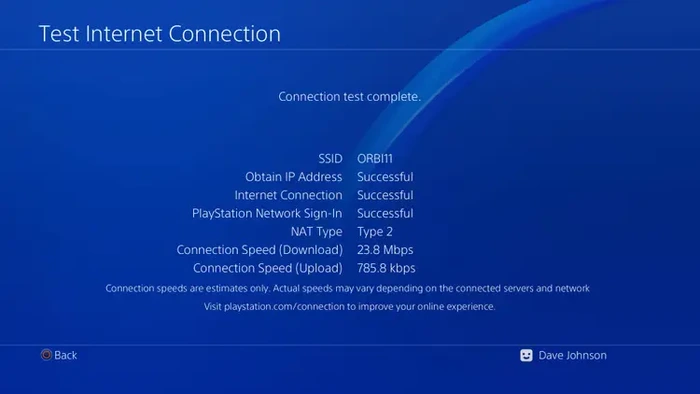
Sometimes, network connection issues can cause Error E-8210604A. To check your connection:
- Go to Settings > Network > Test Internet Connection
- If the connection is unstable or not working, try restarting your router or contacting your Internet Service Provider for assistance
Sign Out of the PlayStation Network
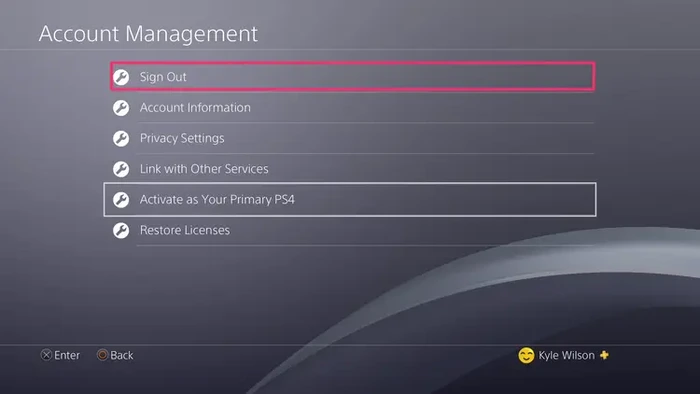
Signing out and signing back in might help resolve the error:
- Go to Settings > Account Management > Sign Out
- Once signed out, go back to Account Management and select “Sign In”
- Enter your email and password to sign back in
Change Your PlayStation Account Email
Changing the email associated with your PlayStation account might help:
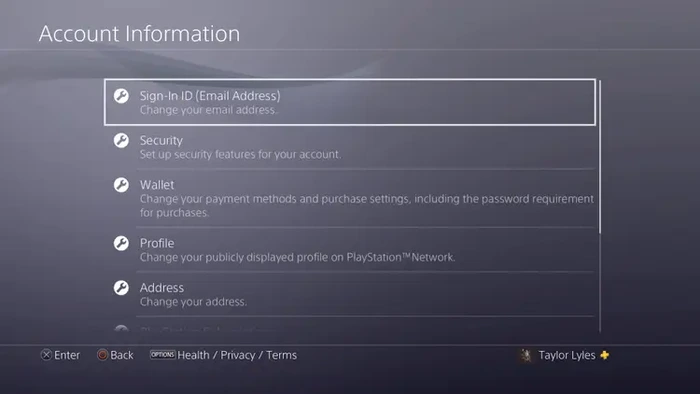
- Go to Settings > Account Management > Account Information > Sign-in ID (Email Address)
- Enter your new email address and confirm your password
- Check your new email for a verification link and click on it to confirm the change
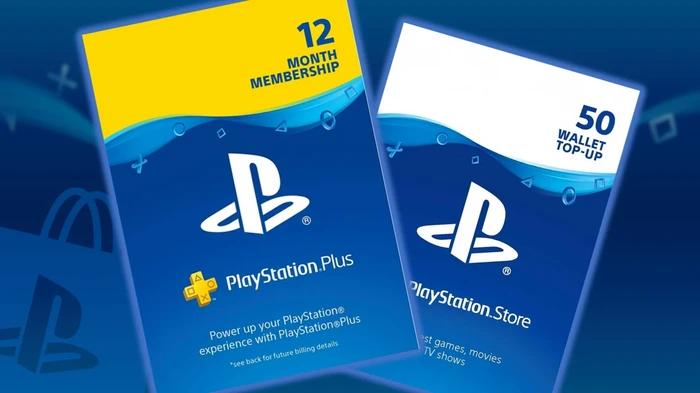
Top Up Your Wallet Before Making a Purchase
Adding funds to your wallet before making a purchase can help bypass the error:
- Go to Settings > Account Management > Account Information > Wallet
- Select “Add Funds” and choose the amount you want to add
- Complete the transaction using your preferred payment method
Remove Your Current Payment Method
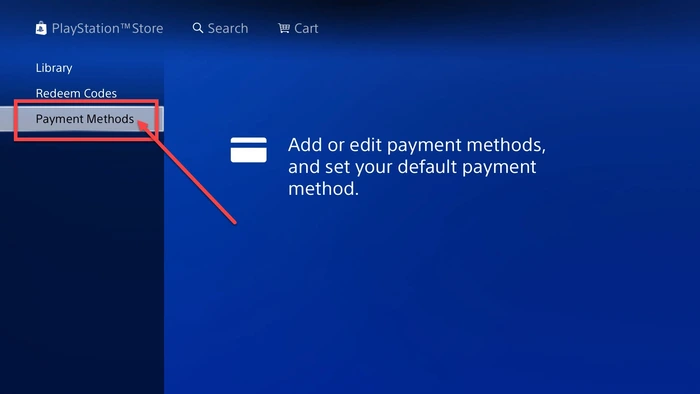
Removing and re-adding your payment method might resolve the issue:
- Go to Settings > Account Management > Account Information > Wallet > Payment Methods
- Select the payment method you want to remove and press “Delete”
- Re-add the payment method by selecting “Add a Payment Method” and entering the required information
Use PayPal to Make a Purchase
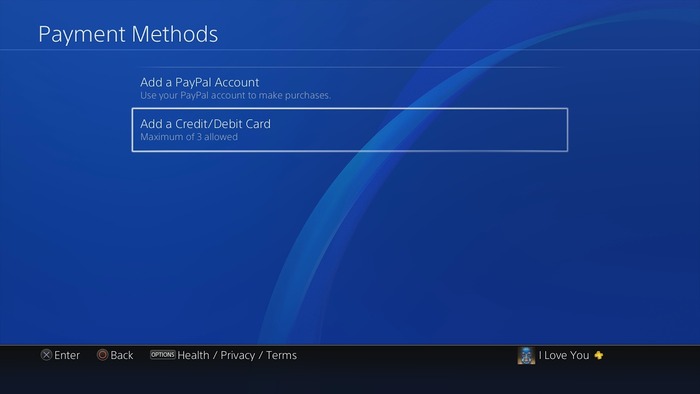
Using PayPal as an alternative payment method can help:
- Go to Settings > Account Management > Account Information > Wallet > Payment Methods
- Select “Add a Payment Method” and choose “PayPal”
- Sign in to your PayPal account and authorize the transaction
Reset Your Internet Router
Resetting your internet router might resolve any network-related issues:
- Unplug your router’s power cord
- Wait for 30 seconds
- Plug the power cord back in and wait for the router to fully restart

Seeking Help from PlayStation Support
If you’ve tried all the above solutions and are still experiencing Error E-8210604A, it’s time to contact PlayStation Support for further assistance:
- Visit the PlayStation Support page at https://www.playstation.com/en-us/support/
- Click on “Contact Us” at the bottom of the page
- Choose “PS4” and then “Account & Security”
- Select “Chat with Us” or “Request a Call” to get in touch with a support agent
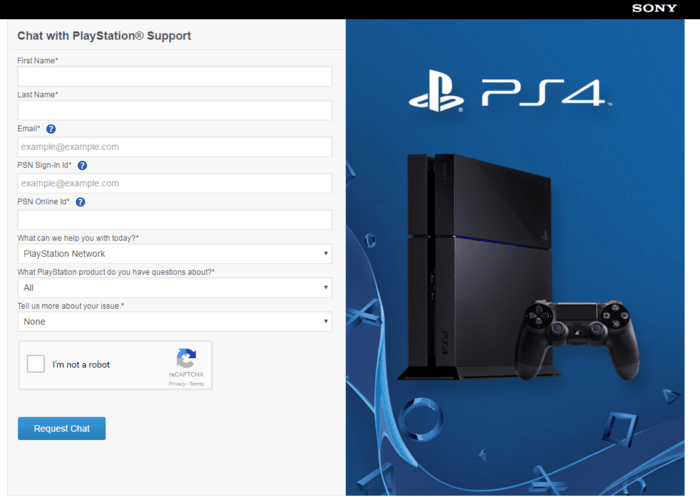
Please be prepared to provide your PlayStation account information and details about the error, including when it occurs and the solutions you’ve already tried.
PlayStation Support agents are trained to help you resolve issues like Error E-8210604A, so don’t hesitate to reach out for help.
Additional Tips
- Update your PS4’s firmware and software to the latest version
- Modify your PS4’s DNS settings
- Purchase a subscription from another retailer, such as Amazon or Best Buy
Conclusion
Error E-8210604A can be frustrating, but with this comprehensive guide, you should be able to resolve it. By following these solutions step by step, even the most tech-challenged users can overcome this error and get back to enjoying their PlayStation 4.
Remember, if you’re unsure about any of the steps, you can search for the provided keywords on Google Images to find visual guides that will make it even easier to resolve Error E-8210604A. Happy gaming!
