

Modern PC games are becoming more visually impressive every year, but those stunning graphics can often come at the cost of performance. Many gamers struggle to find the right balance between smooth gameplay and beautiful visuals. The good news is that you don’t always need the most expensive hardware to achieve both.
By carefully adjusting in-game settings, you can significantly improve your frames per second (FPS) while keeping the game looking great. With the right tweaks, your system can run smoother without sacrificing the overall visual experience.
Why FPS Optimization Matters
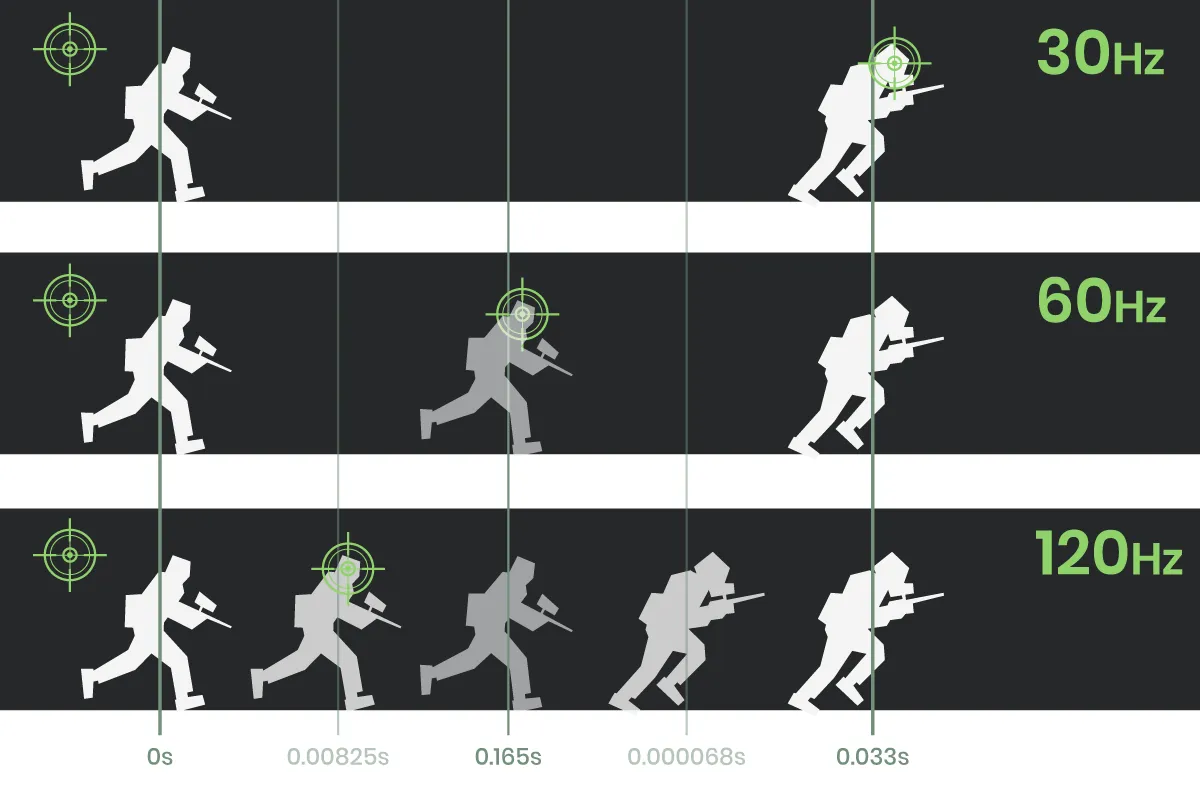
FPS plays a crucial role in how responsive and smooth a game feels. Higher FPS reduces input lag, improves reaction time, and creates a more fluid gaming experience—especially in competitive games.
However, simply lowering every graphical setting isn’t the best solution. Doing so may boost FPS but will make the game look dull or outdated. The key is identifying which settings impact performance the most and adjusting them strategically.
Start With Resolution and Display Settings
Resolution has one of the biggest effects on performance. Running a game at a very high resolution requires significantly more GPU power.
If your FPS is struggling, try these adjustments:
- Lower the resolution slightly (for example, from 1440p to 1080p).
- Enable resolution scaling or dynamic resolution if the game supports it.
- Turn off unnecessary display effects like motion blur.
These changes alone can produce a noticeable FPS increase while keeping the game visually appealing.
Adjust Graphics Settings That Impact Performance the Most
Not all graphics settings affect FPS equally. Some settings dramatically reduce performance while offering only minor visual improvements.
Shadows
Shadow quality is one of the biggest performance drains in modern games. High or ultra shadow settings look great but consume a lot of GPU resources.
Lowering shadow quality from Ultra to Medium often gives a significant FPS boost with only a small visual difference during gameplay.
Anti-Aliasing
Anti-aliasing smooths jagged edges in games, but certain types can be heavy on performance.
Consider switching to lighter options such as:
- FXAA
- TAA (Medium)
These provide smoother edges without a large FPS penalty.
Ambient Occlusion
Ambient occlusion improves depth and lighting realism but can be demanding on the GPU.
Setting it to Medium instead of High usually preserves most of the visual effect while reducing performance impact.
Texture Quality: A Safe Setting to Keep High
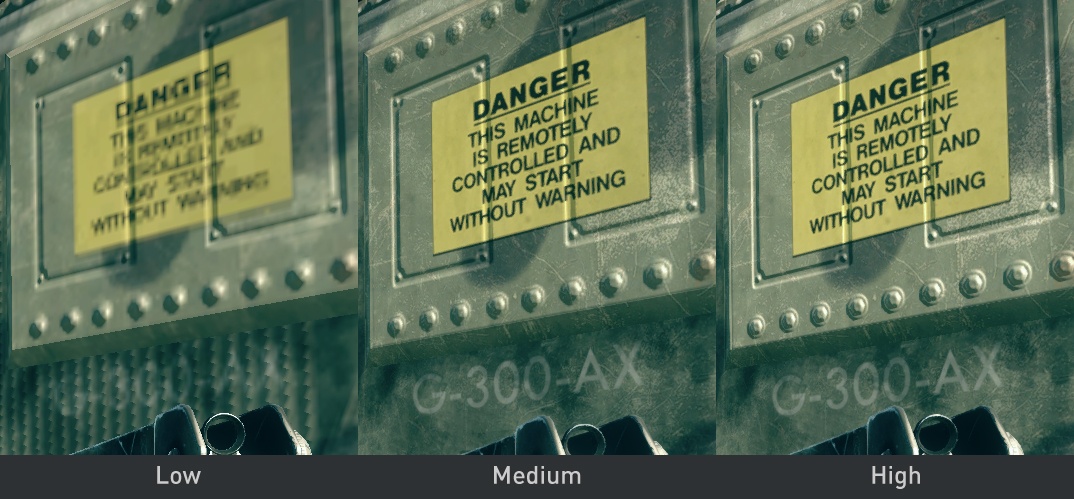
Unlike many other settings, texture quality mainly uses VRAM instead of GPU processing power. If your graphics card has enough VRAM, you can often keep textures on High without losing FPS.
This is a great way to maintain visual quality while optimizing other heavier settings.
Disable Unnecessary Visual Effects
Some visual effects add little to gameplay but consume valuable system resources.
Consider disabling or lowering:
- Motion Blur
- Film Grain
- Chromatic Aberration
- Depth of Field
These cinematic effects may look nice in screenshots, but many players prefer them off for clearer gameplay and better performance.
Use Performance Features Built Into Games
Many modern games include performance-enhancing technologies that can dramatically improve FPS.
Examples include:
- DLSS (for supported NVIDIA GPUs)
- FSR (for AMD and many GPUs)
- XeSS (Intel technology)
These technologies render the game at a lower internal resolution and upscale it intelligently, providing better performance while maintaining strong image quality.
Optimize Your System Outside the Game
In-game settings aren’t the only factors affecting FPS. Your system configuration also plays a role.
Helpful system optimizations include:
- Updating GPU drivers regularly
- Closing background applications
- Enabling game mode in your operating system
- Setting the power plan to High Performance
These small changes can help your hardware deliver its full potential during gameplay.
Finding the Perfect Balance
Every system is different, which means there’s no single “perfect” configuration for all players. The best approach is to test settings one at a time and observe how they affect performance and visuals.
According to Jason from Gizmocrunch, the smartest strategy is to lower settings that heavily impact GPU workload—like shadows and ambient occlusion—while keeping textures and core visual elements high to preserve overall image quality.
This approach ensures that games still look impressive while running at a much smoother frame rate.
Final Thoughts
Optimizing game settings doesn’t mean sacrificing visual quality. With the right adjustments, you can achieve both high FPS and immersive graphics.
By focusing on the settings that impact performance the most and leaving visually important elements untouched, you can create a balanced configuration tailored to your hardware.
A few minutes spent tweaking settings can transform a laggy experience into smooth, responsive gameplay—without making the game look worse.
