


1. Update the Xbox One Controller
Your Xbox headset might not be working due to an outdated controller. Updating your Xbox One controller can resolve this issue.
Steps to update the controller:
a. Connect the controller to the console using a USB cable.
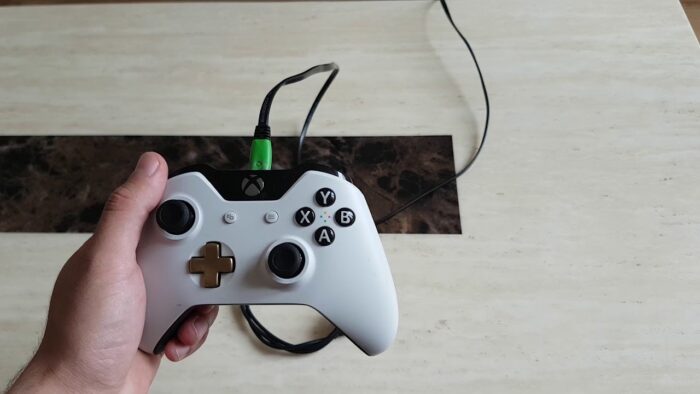
b. Press the Xbox button to open the guide.

c. Select ‘Profile & system,’ then ‘Settings,’ ‘Devices & connections,’ and ‘Accessories.’
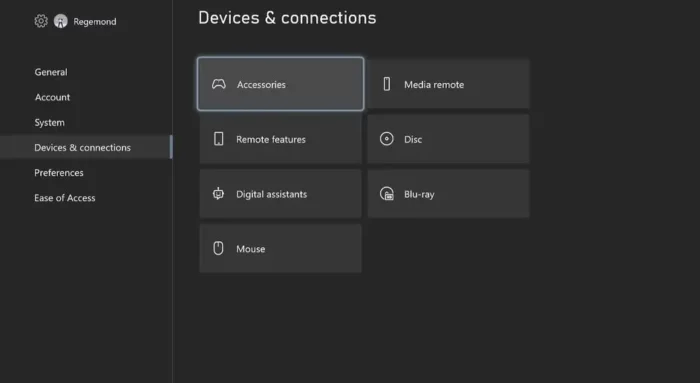
d. Select the controller you want to update, and then choose ‘… More options.

e. Select ‘Firmware version,’ and then ‘Update now.’

If an update is available, your controller will be updated.
2. Check Your Xbox Profile Settings
Incorrect Xbox profile settings can cause headset issues. Ensure your settings are configured correctly.
a. Press the Xbox button on your controller to open the guide.
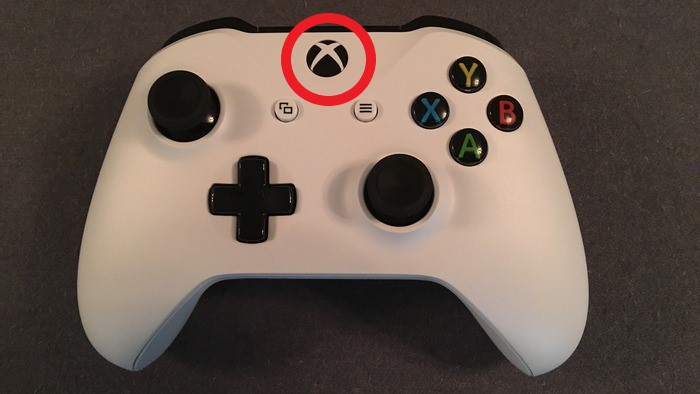
b. Select ‘Profile & system,’ then ‘Settings,’ ‘Account,’ and finally, ‘Privacy & online safety.’

c. Check your communication and voice settings to ensure they are not causing the problem.
3. Restart Your Xbox One Console
A simple restart can fix many issues, including headset problems.
a. Press and hold the Xbox button on the front of the console for 10 seconds.
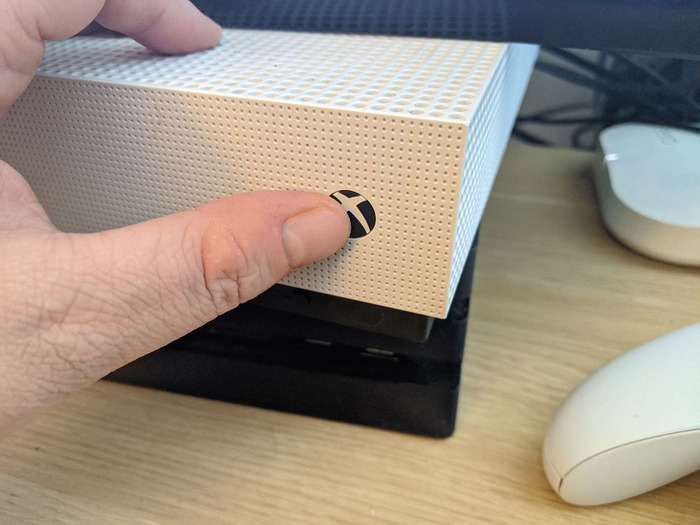
b. Wait for the console to turn off completely.
c. Press the Xbox button again to turn the console back on.

4. Basic Checks on Your Controller and Headset
Perform some basic checks to ensure your controller and headset are functioning correctly.
a. Ensure all connections are secure and clean.
b. Check the headset for damage or wear.
c. Make sure the headset is not muted.

d. Verify that the headset is compatible with your Xbox One console.
5. Properly Plug in the Stereo Headset 3.5-mm
A loose or incorrect connection can cause headset issues. Make sure the headset is connected correctly.
a. Firmly plug the headset into the controller.

b. Check if the headset icon appears on the console’s home screen.

c. If the icon is not visible, try unplugging and replugging the headset or use a different headset to determine if the problem is with the headset or the controller.
6. Replace Controller Batteries
Low controller battery levels can cause headset issues. Replace the batteries in your controller.
a. Remove the battery cover from the back of the controller.

b. Remove the old batteries and replace them with new ones.
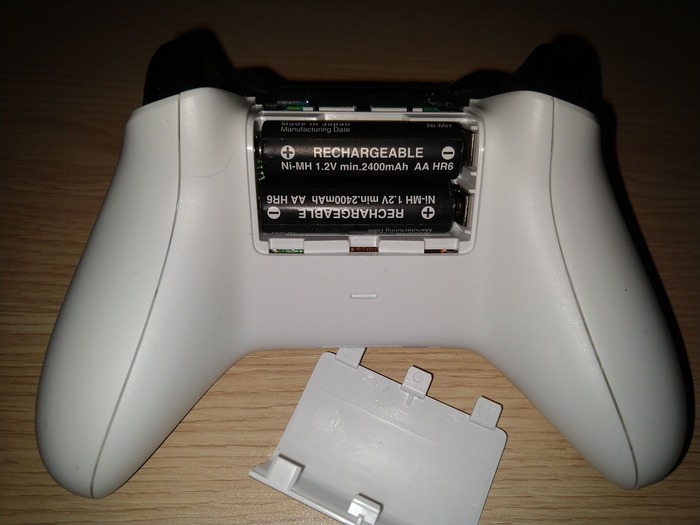
c. Reattach the battery cover.

7. Adjust Game/Chat Balance
Adjusting the game/chat balance can resolve headset audio issues.
a. Press the Xbox button on your controller to open the guide.

b. Select ‘Profile & system,’ then ‘Settings,’ ‘General,’ and finally, ‘Volume & audio output.’

c. Adjust the game/chat balance to your preference.
8. Update Firmware on Headset
Outdated headset firmware can cause issues. Update your headset’s firmware.
a. Connect your headset to a computer with a USB cable.

b. Visit the headset manufacturer’s website to download the latest firmware.
c. Follow the manufacturer’s instructions to update the headset’s firmware.
9. Reset Your Headset
Resetting your headset can fix various issues.
a. Press and hold the power button on your headset for 15 seconds.

b. Wait for the headset to turn off.
c. Press the power button again to turn the headset back on.
10. Power Cycle Your Xbox One Console
Power cycling your console can resolve various issues, including headset problems.
a. Press and hold the Xbox button on the front of the console for 10 seconds.
b. Unplug the power cable from the console and wait for 30 seconds.
c. Plug the power cable back in and press the Xbox button to turn the console back on.
.
11. Perform a Factory Reset
Performing a factory reset can fix many issues, including headset problems. Be aware that this will erase your data.
a. Press the Xbox button on your controller to open the guide.

b. Select ‘Profile & system,’ then ‘Settings,’ ‘System,’ and finally, ‘Console info.’

c. Select ‘Reset console,’ then choose ‘Reset and keep my games & apps’ or ‘Reset and remove everything.’

12. Repair or Replace Your Device
If none of the previous solutions work, you may need to repair or replace your headset or controller.
a. Contact the device’s manufacturer for support.
b. Consider purchasing a new headset or controller if the issue cannot be resolved.
13. Reddit Solutions
Reddit users have reported various solutions to headset issues. Ensure to expand on the solution and not just link to Reddit.
a. One user reported that their Xbox Wireless Headset Microphone didn’t work when plugged into a PC on Windows 11 but worked fine on Windows 10. Consider trying the headset on a different device or operating system.
b. Another user reported that their Corsair HS75XB headset microphone was not working on their new Xbox Series S.
They tried different headsets and controllers with no success. Make sure to test different combinations to identify the source of the problem.
c. A user reported that when they connected their headphones to their Xbox, the sound still came out of the TV, and there was no sound in their headphones.
It only worked when they moved the connection slightly or restarted the Xbox. Ensure a secure connection, and try restarting the console if necessary.
14. Troubleshooting Wireless Xbox One Headset
Wireless headsets can experience additional issues, such as connectivity problems and interference.
a. Make sure your wireless headset is charged and within range of the console.
b. Check for potential sources of interference, such as other electronic devices or Wi-Fi routers.
c. Reset the wireless headset by following the manufacturer’s instructions.
d. Update the firmware on your wireless headset, as described in solution 8.
e. If necessary, consult the headset’s manual or contact the manufacturer for additional support.
By following the solutions outlined in this article, you should be able to resolve most Xbox headset issues. Remember to perform basic checks on your devices, ensure secure connections, and keep your firmware current.
Don’t hesitate to contact the device’s manufacturer for assistance or consider purchasing a new headset or controller if the issue persists.
