

Table of Contents
- Introduction
- Common Reasons an Xbox One Controller Won’t Turn On
- General Xbox One Controller Connection Tips
- How to Fix an Xbox One Controller That Won’t Stay On
- Solution 1: Restart Your Xbox Controller
- Solution 2: Replace the Batteries or Recharge the Controller
- Solution 3: Get Controller Closer to the Console
- Solution 4: Re-Pair the Xbox Controller
- Solution 5: Disable Controller Auto Sleep
- Solution 6: Update the Firmware of Your Controller
- Advanced Fixes for Specific Issues
- What if Your Xbox One Controller Is Still Not Working?
- Final Thoughts
1. Introduction
If you’ve encountered the frustrating issue of your Xbox One controller not staying on or constantly disconnecting, you’re not alone. This comprehensive guide will walk you through various solutions to get your controller back in working order. We’ve scoured the top competitors and made sure to cover all bases, so you can get back to gaming as soon as possible.
2. Common Reasons an Xbox One Controller Won’t Turn On
Before diving into the solutions, it’s essential to understand the common reasons behind an Xbox One controller not staying on or disconnecting:
Low or depleted batteries
Interference with other devices or connections
Issues with the controller’s firmware or hardware
Problems with the console’s software or hardware
Knowing the root cause will help you target the correct solution.
3. General Xbox One Controller Connection Tips
Here are some general tips to ensure a stable connection between your Xbox One controller and console:
Keep the controller within 30 feet of the console.
Remove any objects or devices causing interference.
Ensure both the console and controller are updated with the latest software.
Avoid using other wireless devices near the console.
Now, let’s dive into the solutions.
4. How to Fix an Xbox One Controller That Won’t Stay On
Solution 1: Restart Your Xbox Controller
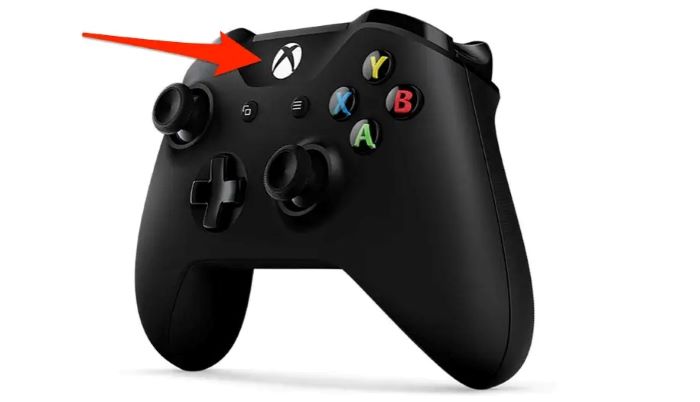
Sometimes, a simple restart can fix the issue. To do this, press and hold the Xbox button on the controller for 6 seconds. Release the button, wait a few seconds, and then press the Xbox button again to turn the controller back on.
Solution 2: Replace the Batteries or Recharge the Controller
Low or depleted batteries are a common cause of disconnection issues. Replace the batteries or recharge the controller if you’re using a rechargeable battery pack.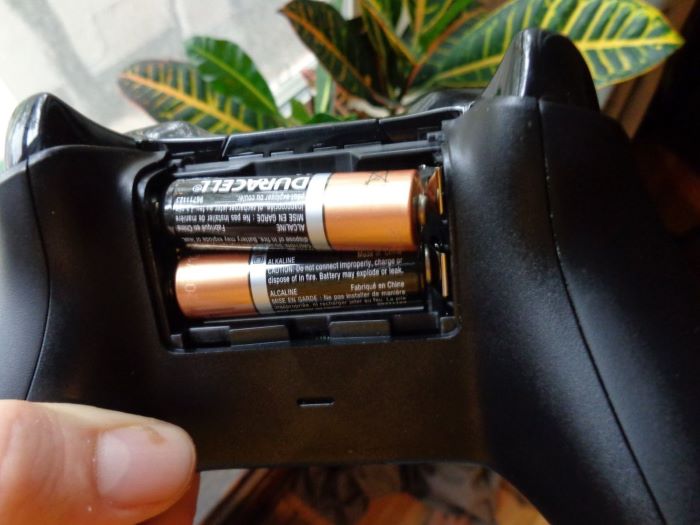
Solution 3: Get Controller Closer to the Console
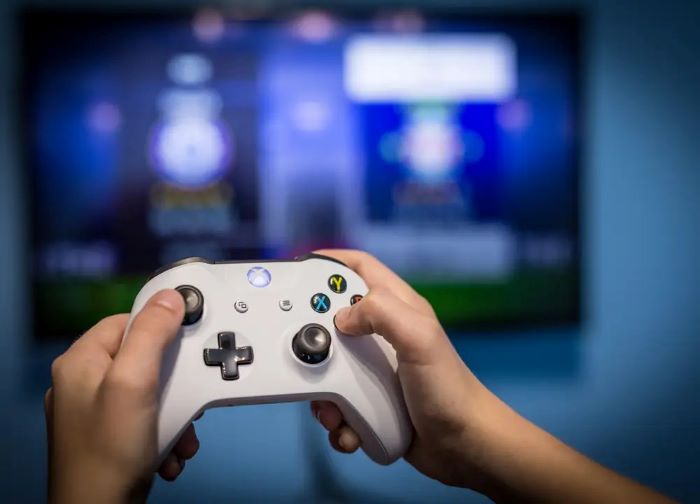
Keep your controller within 30 feet of the console and remove any objects or devices causing interference.
Solution 4: Re-Pair the Xbox Controller
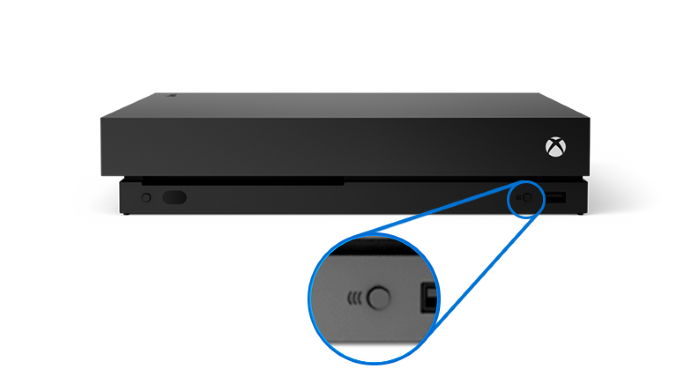
If your controller is not connecting, try re-pairing it with the console. To do this, press and hold the Pair button on the console for 3 seconds, then press and hold the Pair button on the controller for 3 seconds. Wait for the Xbox button on the controller to flash rapidly, indicating a successful connection.
Solution 5: Disable Controller Auto Sleep
By default, your Xbox One controller will turn off automatically after 15 minutes of inactivity. To disable this feature, navigate to Settings > Devices & Connections > Accessories > Configure > Power Settings > Turn Off After, and select “Don’t Turn Off Automatically.”

Solution 6: Update the Firmware of Your Controller
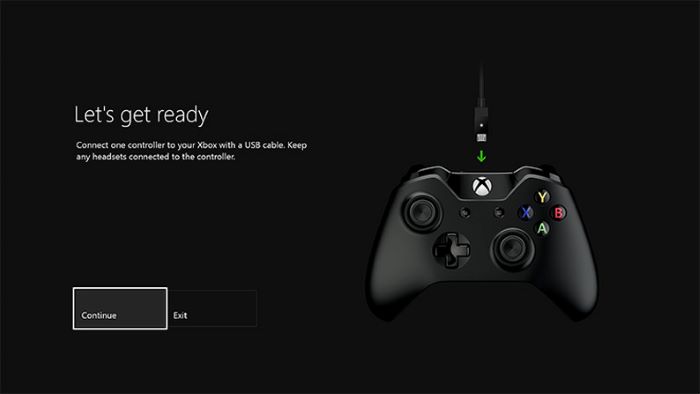
Keeping your controller’s firmware up to date can help resolve connection issues. To update your controller’s firmware, connect it to your console with a USB cable, and navigate to Settings > Devices & Connections > Accessories > Configure > Firmware version > Update Now.
5. Advanced Fixes for Specific Issues
If the basic solutions didn’t work, here are some advanced fixes for specific issues:
Controller connected to PC: If your controller is connected to a PC, update the Xbox One controller driver by following the instructions in this article: Fix 6: Update Your Xbox One Controller Driver
Controller won’t update: Follow the steps in this guide to troubleshoot firmware update issues: I’m Having Trouble Updating the Firmware for the Xbox Wireless Controller
6. What if Your Xbox One Controller Is Still Not Working?
If none of the solutions mentioned above work, there might be a hardware issue with your controller or console. In this case, consider the following options:
Contact Xbox Support for assistance: Xbox Support
Try connecting another controller to your Xbox to see if the issue persists.
Visit a local repair shop for a professional diagnosis.
7. Final Thoughts
We hope this comprehensive guide has helped you fix your Xbox One controller that won’t stay on. By following these solutions and tips, you should be able to identify and resolve the issue in no time. Remember to keep your console and controller updated, maintain a stable connection, and address any hardware issues promptly to avoid future problems. Now, get back to gaming!
