

Roblox is a viral gaming platform where users can create, share, and play games created by others. However, players often encounter the error code 279, preventing them from joining a game.
In this article, we will discuss the causes of this error and provide easy-to-follow solutions to help even the most tech-challenged users resolve it.
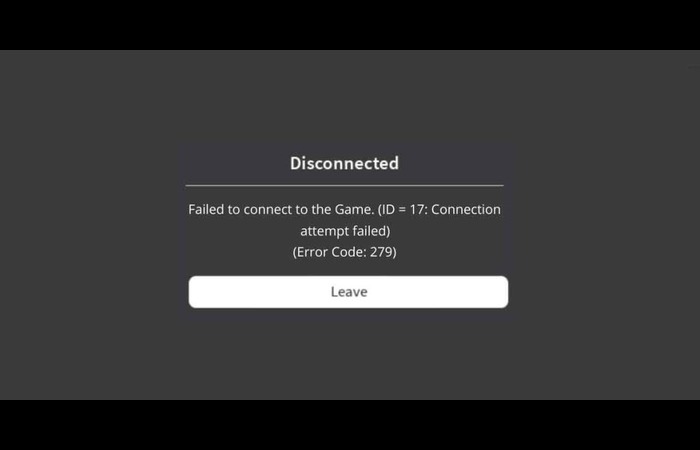
What Causes Roblox Error Code 279?
Error code 279 in Roblox usually occurs due to the following:
- Slow or poor internet connection
- Firewall issues
- Antivirus restrictions
- Browser add-ons or extensions interfering with the game
Fixing Error Code 279: Step-by-Step Solutions
Fix #1: Check Your Internet Connection

A slow or unstable internet connection can cause error code 279. To test your connection:
Open a new browser tab and try loading other websites.
If they load slowly or not, restart your router and modem.

If the issue persists, contact your internet service provider (ISP) for assistance.
Fix #2: Use a Different Browser

Roblox recommends using Google Chrome, Mozilla Firefox, or Microsoft Edge for the best gaming experience. If you use a different browser, switch to a supported one and try reaccessing Roblox.
Fix #3: Update Your Web Browser
An outdated browser may cause compatibility issues with Roblox. Update your browser to the latest version:
For Chrome:

Click on the three-dot menu in the top-right corner.
Select “Settings.”
Scroll down to “About Chrome” and click “Update Chrome” if available.
For Firefox:
Click on the three-line menu in the top-right corner.

Select “Help” > “About Firefox.”

Click on “Update Firefox” if available.

For Edge:

Click on the three-dot menu in the top-right corner.
Select “Settings.”
Click “About Microsoft Edge” and “Update Edge” if available.
Fix #4: Disable Browser Add-ons
Browser add-ons or extensions can interfere with Roblox. Disable them temporarily:
For Chrome:
Click on the three-dot menu in the top-right corner.
Select “More tools” > “Extensions.”
Toggle off all extensions and try reaccessing Roblox.

For Firefox:

Click on the three-line menu in the top-right corner.
Select “Add-ons and Themes” > “Extensions.”
Disable all extensions and try reaccessing Roblox.

For Edge:

Click on the three-dot menu in the top-right corner.
Select “Extensions.”
Toggle off all extensions and try reaccessing Roblox.

Fix #5: Disable or Configure Your Firewall
Firewalls can block Roblox from connecting to the internet. Temporarily disable your firewall or create an exception for Roblox:
Press “Windows key + R” and type “control panel” in the Run dialog.
Click “System and Security” > “Windows Defender Firewall.”
3. Click “Turn Windows Defender Firewall on or off.”
Select “Turn off Windows Defender Firewall” for public and private networks.
Click “OK” and try reaccessing Roblox.

Note: Turning off your firewall can expose your computer to security risks. It is recommended to turn it back on after testing Roblox.
To create an exception for Roblox:
Open the “Windows Defender Firewall” settings as described above.

Click “Allow an app or feature through Windows Defender Firewall.”
Click “Change settings” and then “Allow another app.”
Browse to the Roblox installation folder (usually “C:\Users\AppData\Local\Roblox”) and select “RobloxPlayerLauncher.exe.”
Click “Add,” ensure both “Private” and “Public” boxes are checked, and click “OK.”

Fix #6: Disable or Configure Your Antivirus
Antivirus software may also block Roblox. Temporarily disable your antivirus or create an exception for Roblox:
Locate your antivirus software in the system tray (bottom-right corner of the screen).
Right-click the antivirus icon and select “Disable” or a similar option.
Choose a time frame for disabling the antivirus and try reaccessing Roblox.

Note: Disabling your antivirus can expose your computer to security risks. It is recommended to enable it after testing Roblox.
To create an exception for Roblox in your antivirus:
Open your antivirus software settings.
Look for an “Exceptions” or “Exclusions” section.
Add the Roblox installation folder (usually “C:\Users\AppData\Local\Roblox”) to the list of exceptions.

Conclusion
By following the steps provided in this article, you should be able to fix Roblox error code 279 and get back to enjoying your favorite games.
If you continue to face issues, consider contacting the Roblox support team for assistance.
Alternative Solutions from Reddit Users
Some Reddit users have found success by:
Resetting their internet settings in their browser.
Changing their DNS servers to Google DNS (8.8.8.8 and 8.8.4.4) or OpenDNS (208.67.222.222 and 208.67.220.220).
Remember to use caution when applying solutions found on the internet, as they may not work for everyone or could potentially cause other issues.
Final Thoughts
We hope this comprehensive guide has provided the necessary steps to resolve Roblox error code 279.
Remember to keep your software current, maintain a stable internet connection, and configure your security settings to allow Roblox to function without issues.
If you still encounter problems, don’t hesitate to contact Roblox support for further assistance.
